Timer and +
Run the timer from the dock, or float it above your other apps, and stop it to save the work. The + creates a 15-minute entry in the current slot.
Start and stop the timer
Use the dock at the bottom of the calendar when you want Phased to count the time while you work. Only one timer can run at a time.
To continue work you already logged, move the pointer over its entry and press ▶. The timer starts with that entry's project, task and note. See Copy and continue.
- Choose a project in the dock. For a phased project, choose the phase next. After the phase is set, you can also choose a task. A simple project has only one phase, so there you can choose a task straight away. Press Start timer.
- While the timer runs, you can still choose or change its phase and task in the dock. The running entry updates straight away.
- Press Stop when you finish. What happens next
depends on whether the entry already has a phase:
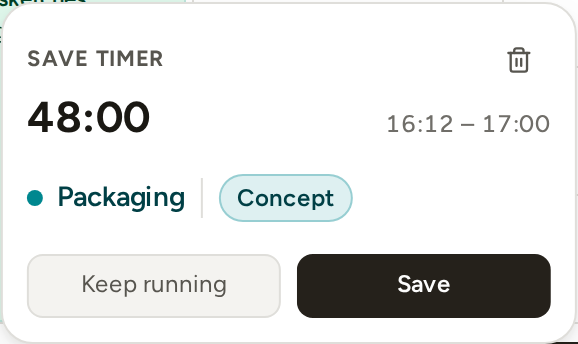
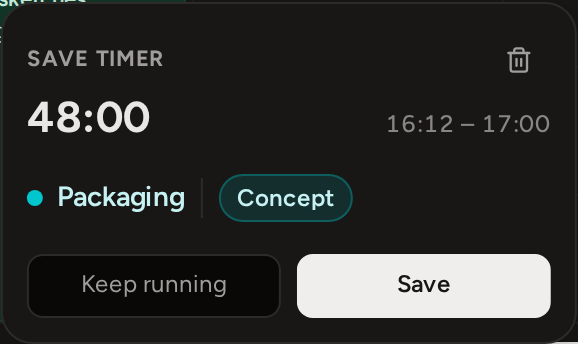
For a simple project, or when you already chose a phase, the entry saves immediately. For a phased project where you did not choose a phase, the Save timer panel opens.
- If the panel opens, choose the phase and press Save. Press Keep running if you are not ready to finish.


- If you stop the timer before one minute has passed, Phased does not save the time. It shows Under a minute, nothing logged. and creates no entry.
- The Save timer panel has a bin button, Discard timer. It deletes all the time from this timer after you confirm. You cannot undo this.
Float the timer above other apps
In Chrome or Edge on a computer, a running timer can open in a small window that stays on top of your other apps. This is useful when you work full screen in other software and want to keep the timer visible.


- Start the timer, then press the window button at the left end of the dock, Float above other apps.
- The timer opens in its own window, just wide enough for its contents. Drag the window by its title bar to move it. If you make the window taller, the clock gets bigger. After you resize the window, it opens at that size the next time.
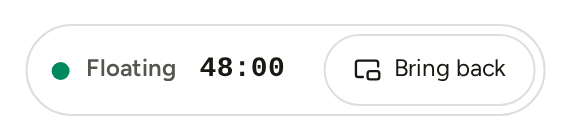
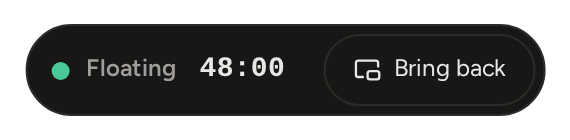
- The dock shows Floating. Press Bring back to return the timer to the dock.
- Phased remembers whether your last timer floated. After you float a timer, the next one floats as soon as you press Start timer. If you press Bring back, or close the window while the timer runs, the next timer stays in the dock.
- Stop in the window works like Stop in the dock. If the project has phases and you did not choose one, the window closes. Phased comes to the front with the Save timer panel open. Choose the phase and press Save. Or press Keep running to move the timer back into its window.
- When you stop the timer, the window shows what was logged and then closes.
- Keep the Phased tab open. If you close or reload the tab, the floating window closes too.
The + in the dock
Use the + when you already know the time you worked and do not need a running timer. It creates a 15-minute entry that starts at the current time.
- Press the + in the dock.
- Phased opens a 15-minute entry at the current time, with the New entry panel beside it. The entry goes on today if today is on screen. Otherwise it goes on the first day shown.
- Choose the project and phase, adjust the start, end or duration, then press Add.
The + in the dock appears only when no timer is running. On a phone, the + is at the bottom right of the screen instead. It does the same thing, and it stays visible while a timer runs.
Keyboard shortcuts
On a computer, four keyboard shortcuts do the same as buttons in the dock and the sidebar. They do not work while a dialog is open. N, T and ? also do not work while you type in a field.
- N opens a new entry, the same as the +.
- T starts the timer, and stops it again.
- Ctrl B (⌘ B on a Mac) collapses or expands the sidebar.
- ? shows the list of shortcuts in the app.
The list also includes one mouse action: hold Alt (Option on a Mac) while you drag an entry to copy it instead of moving it. See Copy and continue.
You can also open the list from Help at the bottom right: choose Keyboard shortcuts.