Copy and continue
Duplicate an entry straight after itself, hold Alt and drag to copy it to any time or day, or start the timer with the same project, task and note.
Duplicate an entry
Use Duplicate when you did the same work again straight after. The copy starts where the original ends and runs just as long.
- On a computer, point at an entry. A small bar with two buttons appears on its top right corner.
- Press Duplicate entry, the two squares with a plus.
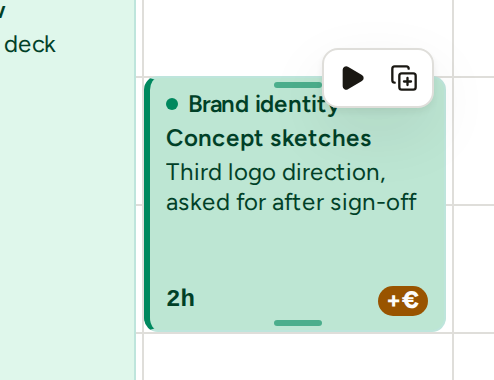
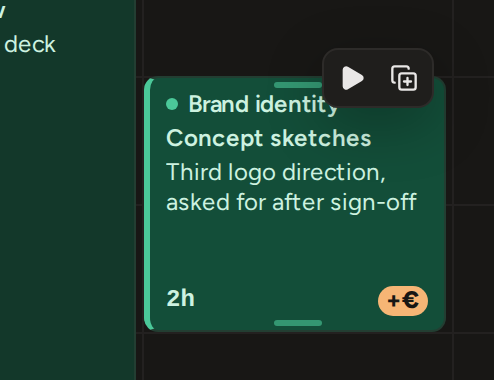
The entry editor has the same button in its header, beside the bin. It works wherever the editor opens: the calendar grid, the List view and the Time page. If you changed something in the editor, Phased saves that first and then copies the entry.


- The copy keeps the project, phase, task, note and any Out of scope mark. Only the times change.
- A message with Undo shows for ten seconds. Undo removes the copy.
- If that time is already taken, the copy still goes there and sits beside the other entry. Drag it to where it belongs.
- The bar does not show on an entry that is too narrow for it, for example when two entries share the same time. Use the button in the editor instead.
Copy to another time or day
To copy an entry somewhere else, hold Alt (Option on a Mac) and drag it. The original stays where it is.
- Hold Alt, press the entry and drag. A dashed copy marked + Copy follows the pointer.
- Release at the new time or day. Phased saves the copy and shows a message with Undo.
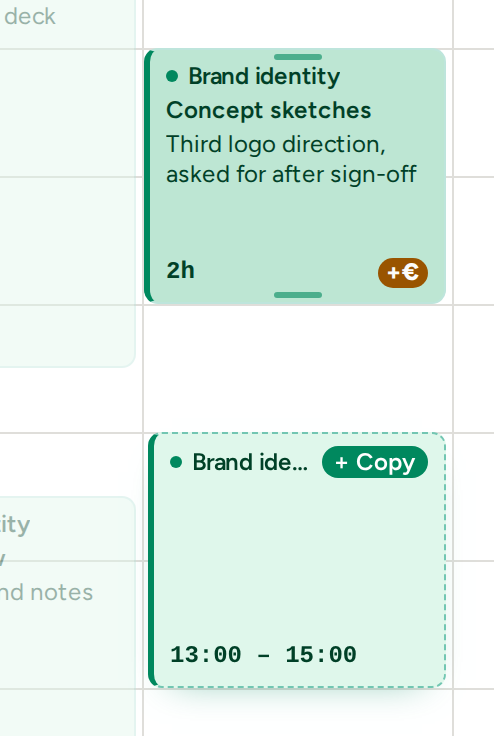
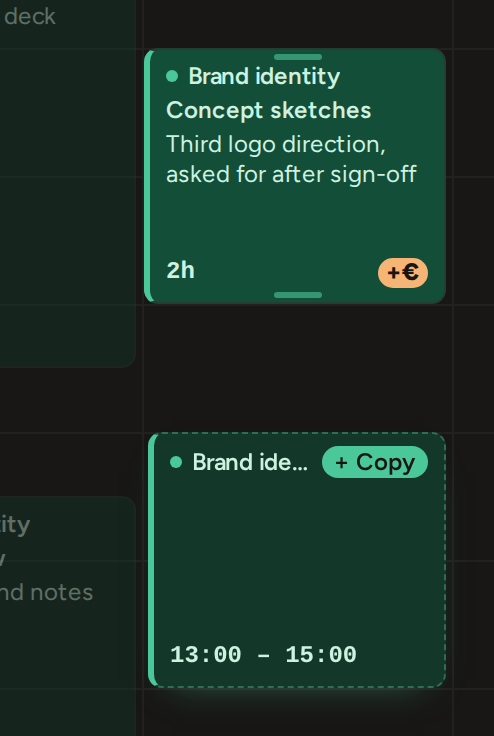
- What counts is Alt at the moment you release. Press it during a normal drag to turn the move into a copy, or let go of it to move the entry instead.
- The copy snaps to 15-minute steps, like any drag. Released where it started, nothing is copied.
- A very short entry cannot be dragged at all, so it cannot be copied this way. Use Duplicate entry, then move the copy in the editor. See Move and resize.
Start the timer from an entry
Press the start button (▶) to carry on with the same work. The timer starts now, with the entry's project, phase, task and note already chosen.
The button is on the bar that appears when you point at an entry, and in the editor's header. It shows only while no timer is running. Stop the running timer first, so the dock can ask anything it needs to save it. See Timer and +.
- The entry you started from does not change.
- The new run starts in scope. If the work is out of scope, mark it once you have stopped the timer.