Quick start
One simple project in eight steps: your rate, the first entry, the Time page, budget health and the effective rate, out-of-scope work, and a client report.
Eight steps through Phased with a real job of your own, or a made-up one you can delete afterwards. A new account starts with 30 days of Pro, so every step is open to you from the first sign-in.
1. Check your rate and currency
During setup, Phased asks for the default client rate and display currency. The rate gives your tracked time a value. You can change both later under Settings › Rates & currency.
Use the hourly value you normally charge or want to measure against. A project or phase can have its own rate, but every workspace still needs this fallback.
2. Create a simple project
- Open Projects and press New project.
- Give the job a name, and keep Simple while the whole job can share one rate and one budget.
- If useful, choose or create its client.
- Add an optional budget in money or hours, check the rate below it, then press Create.
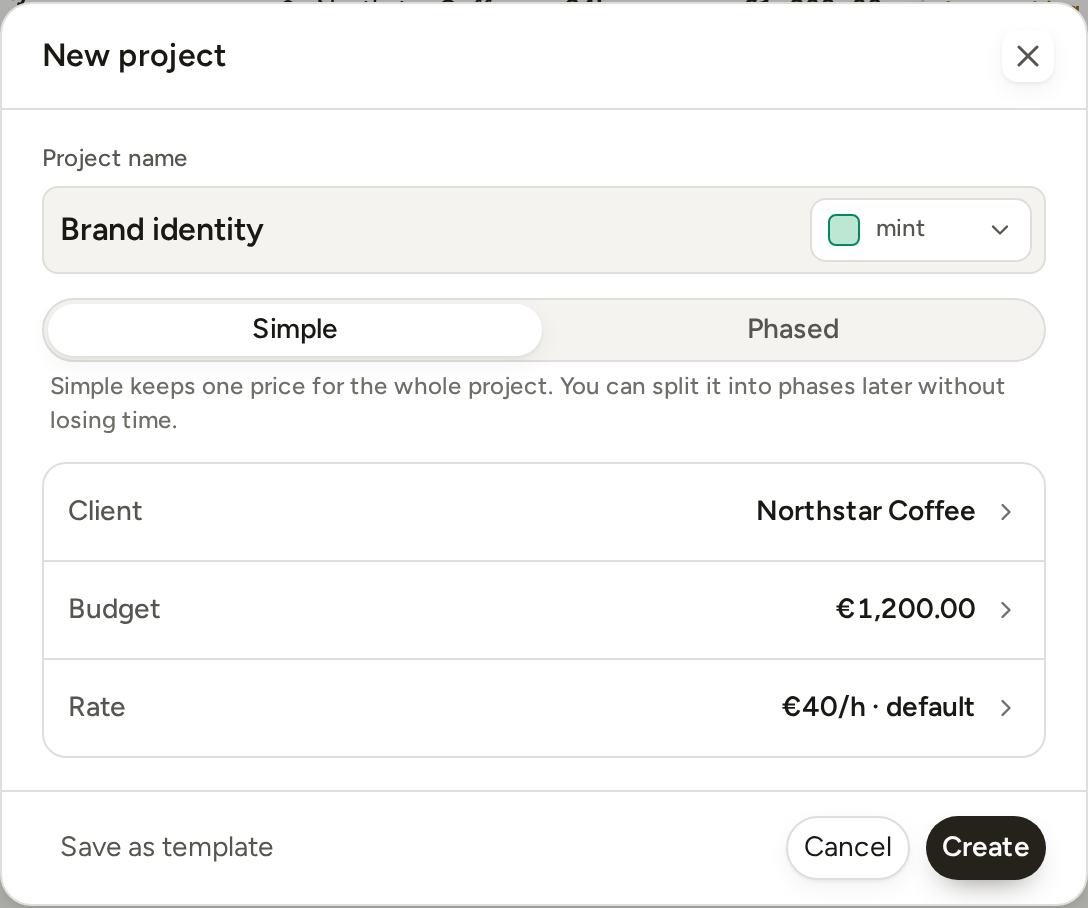
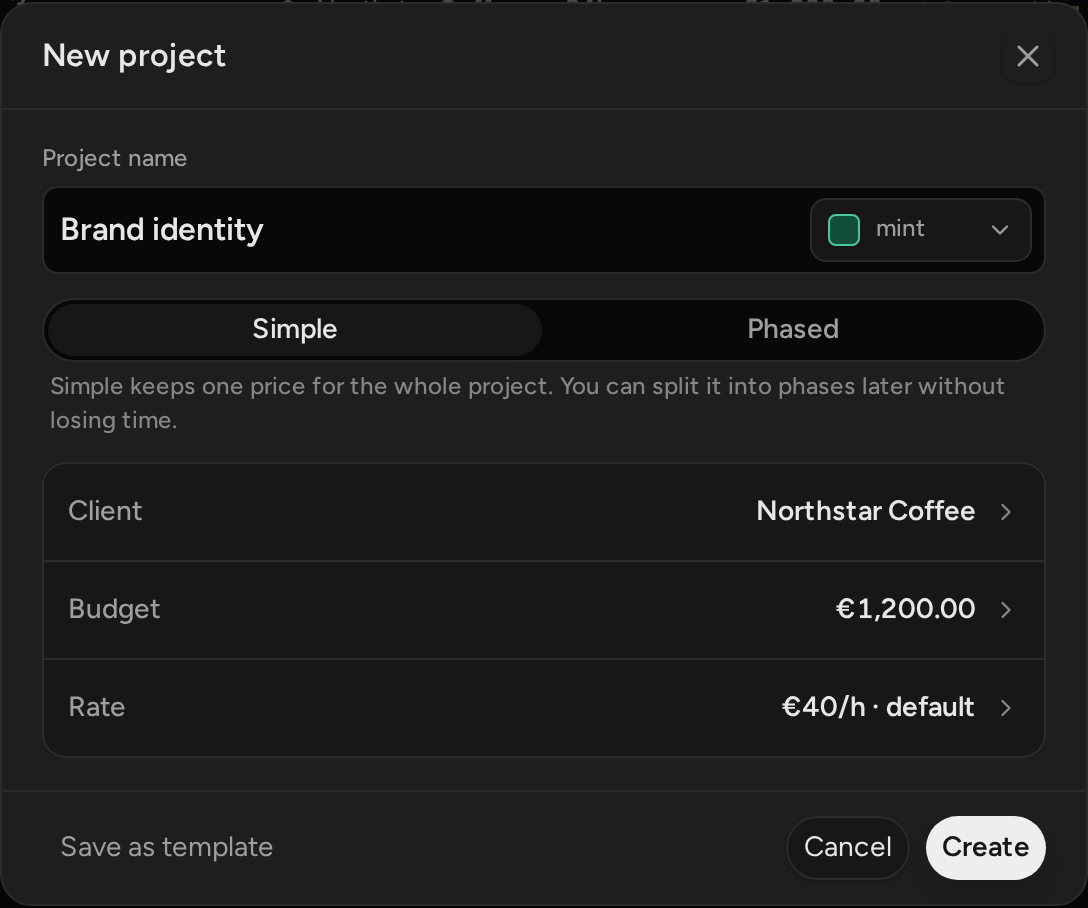
A money budget is the agreed price for the original work. An hours budget stores the time you planned and works out its money value from the rate. You can leave the budget empty for ordinary hourly work.
3. Track the first piece of work
Open Calendar and drag over the time you worked. The entry panel opens with that length already set. Choose the project and press Add.
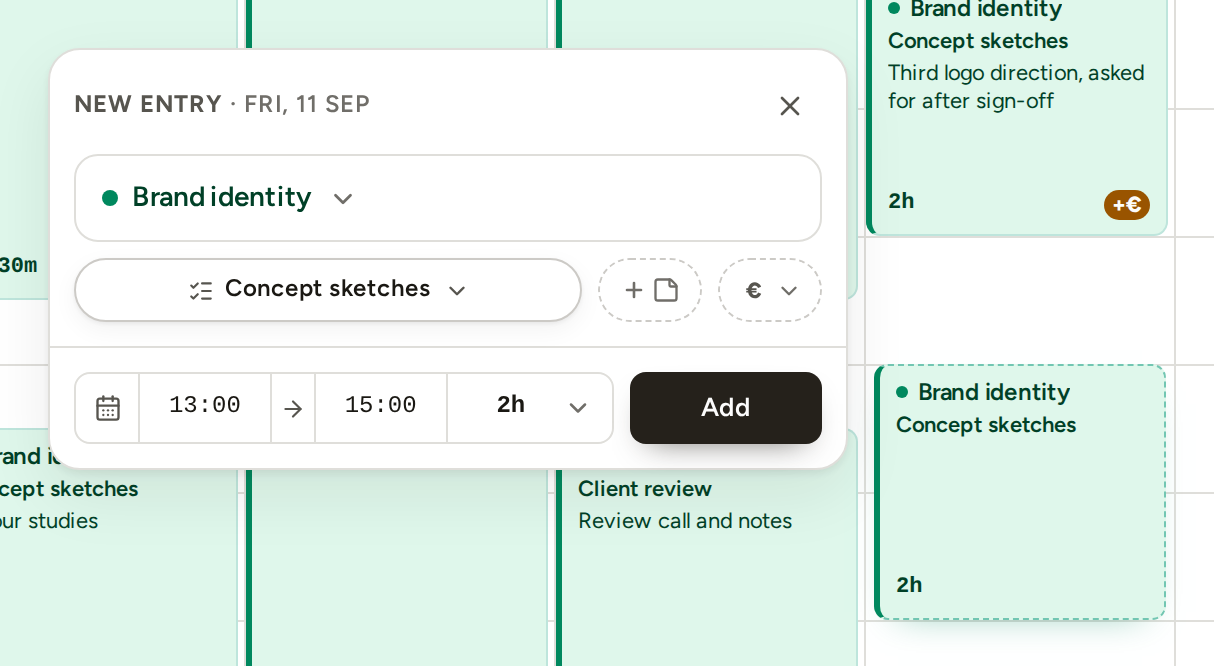
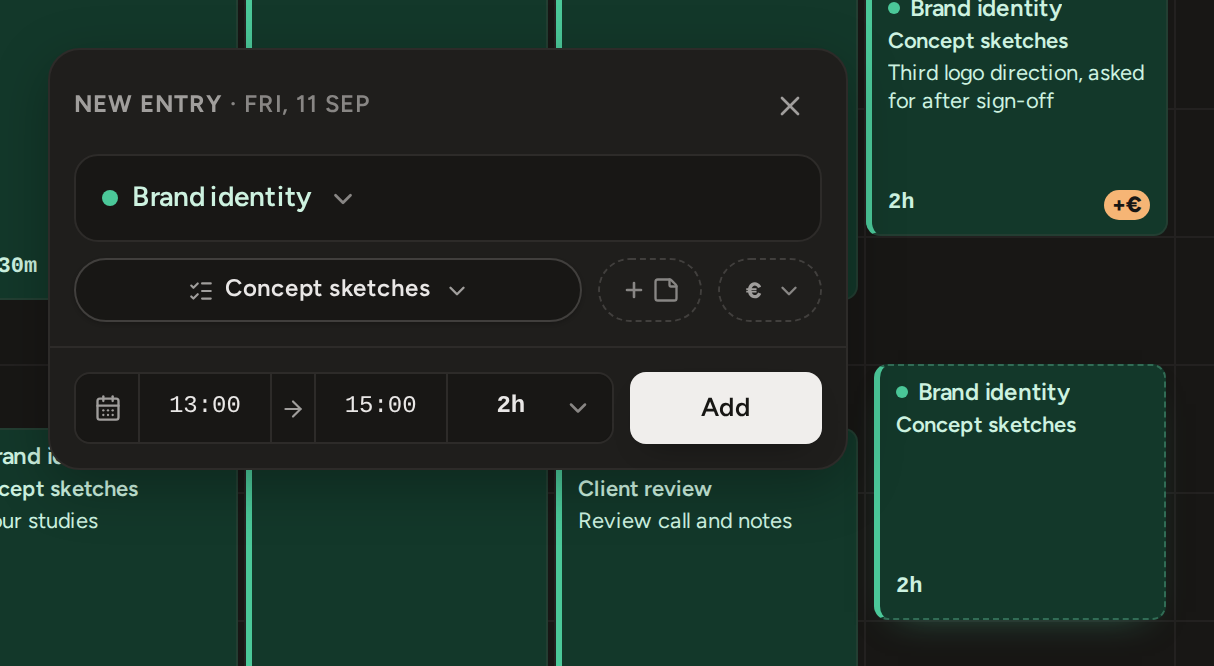
Two other ways exist for other moments: the + opens a 15-minute entry at the current time for you to adjust, and choosing a project and starting the timer tracks work happening now. Every entry belongs to a project and phase, and a simple project handles its hidden phase for you.
4. Name and correct the entry
Select the entry to change its day, times, duration, project or phase. Add a task to name the work, and use the note for private detail you may want in an internal report.
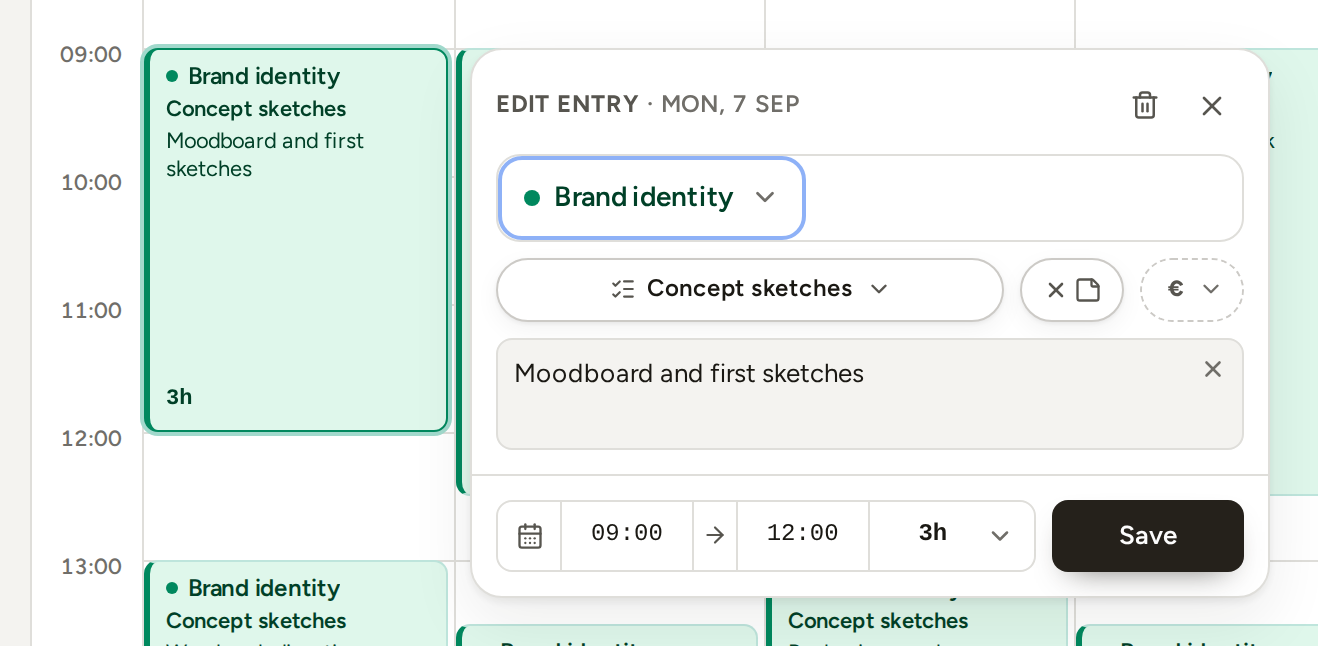
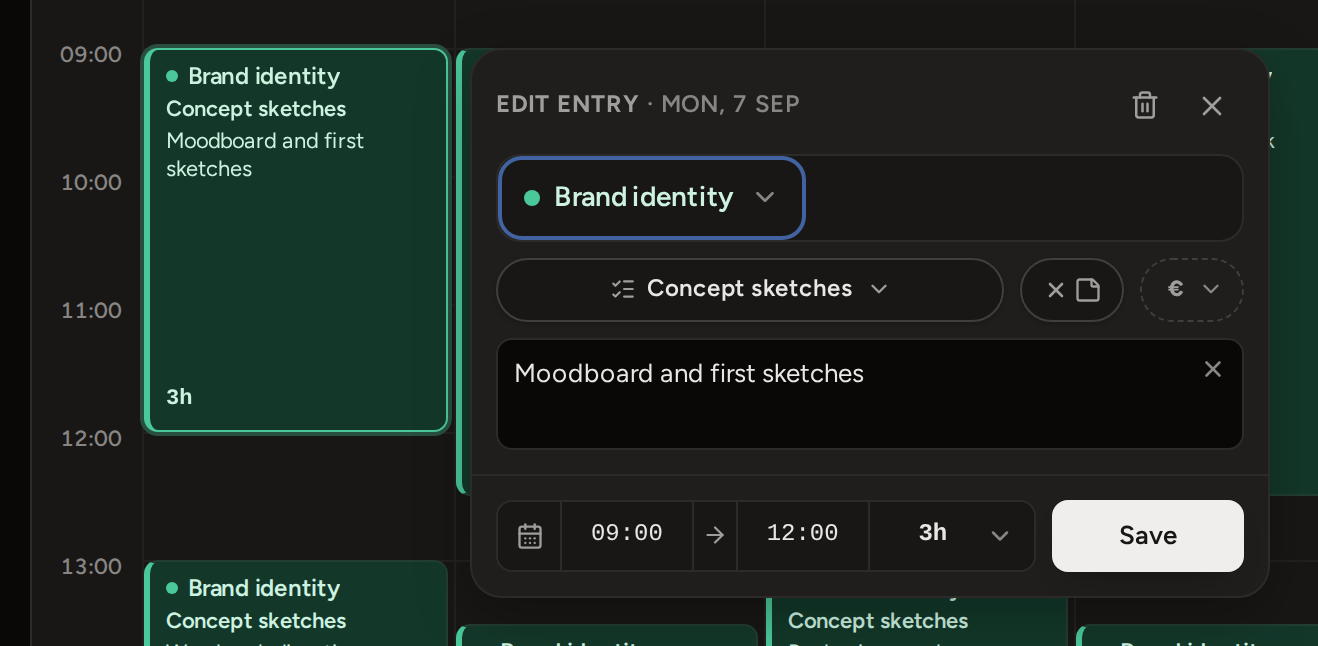
The task control offers your saved names, and a name you type becomes a new task from the create row. Drag the block to move it, or resize it from either edge. To divide one stretch of time, shorten the entry and draw a second one.
5. Review where the time went
Open Time to choose a date range and see total time, the average across days worked, the value at your rates, and Out of scope time. The chart shows when you worked and divides the hours by project.
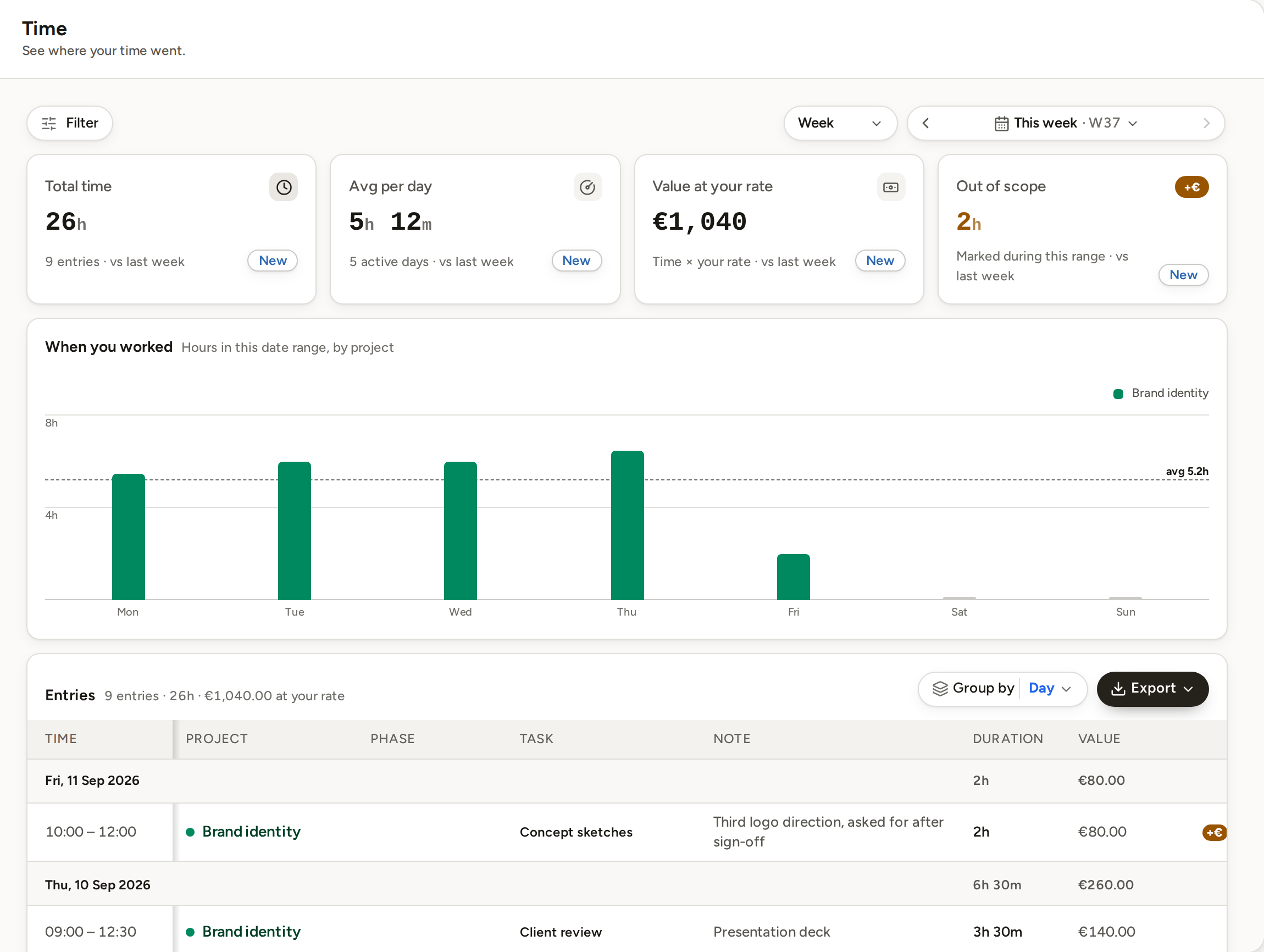
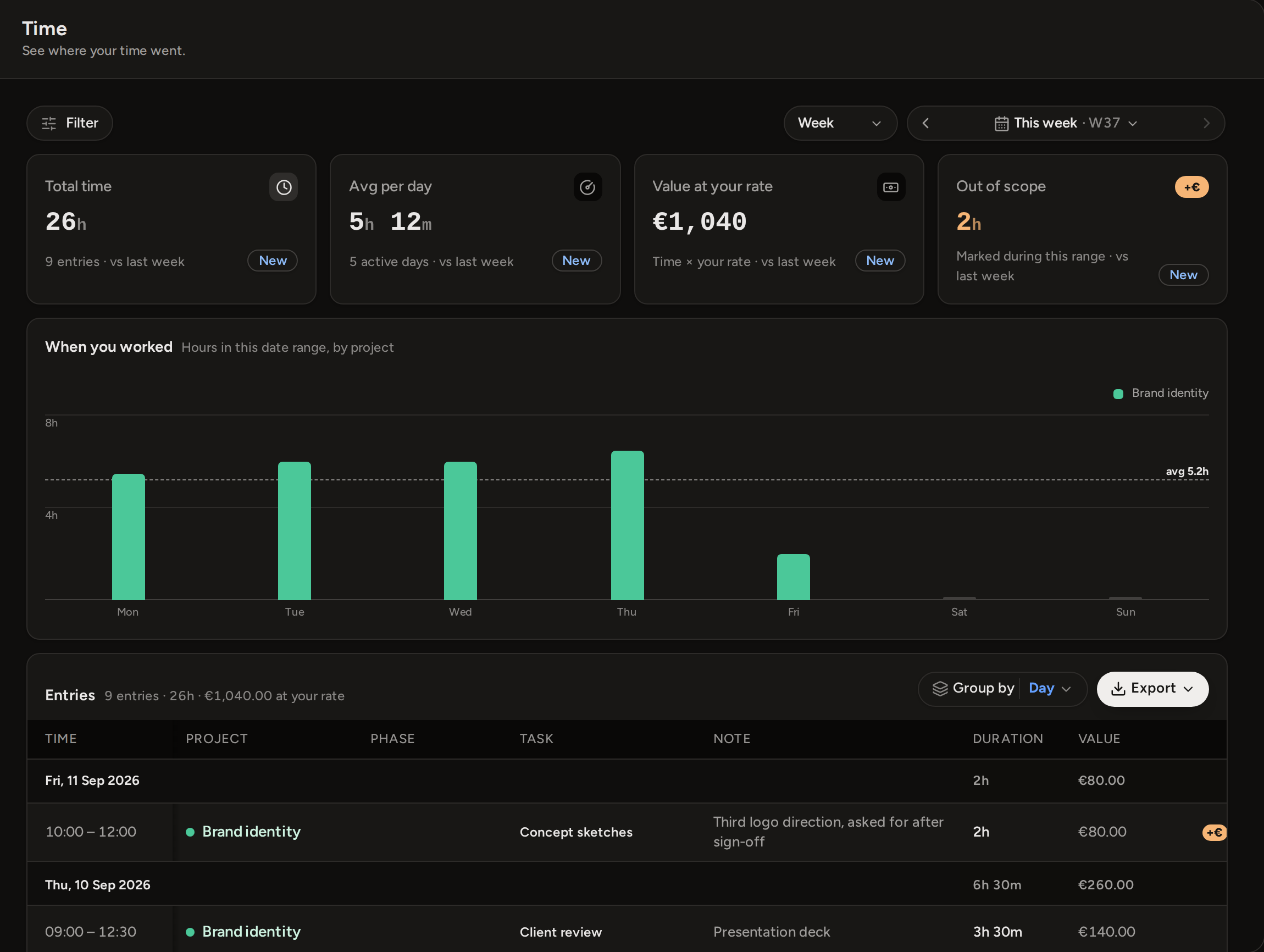
Filter by client, project, phase, task or scope, then group the entry table by day, project, client or phase. The CSV export follows the range and filters currently on screen.
6. Read the budget and effective rate
Open Profitability and find the project under Budget performance. A budget never stops time tracking. Budget health compares the original work with the time the agreed price can safely cover: below 80% is On track, 80% through 100% is Approaching, and above 100% is Over budget.
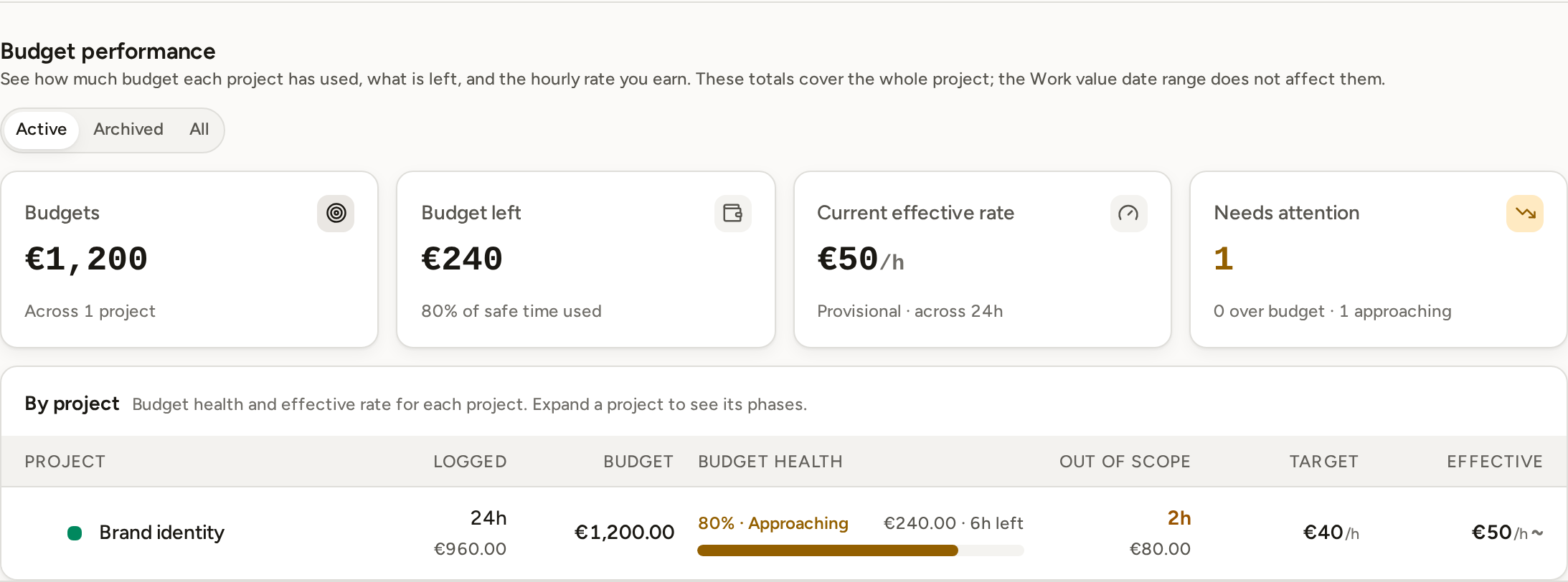
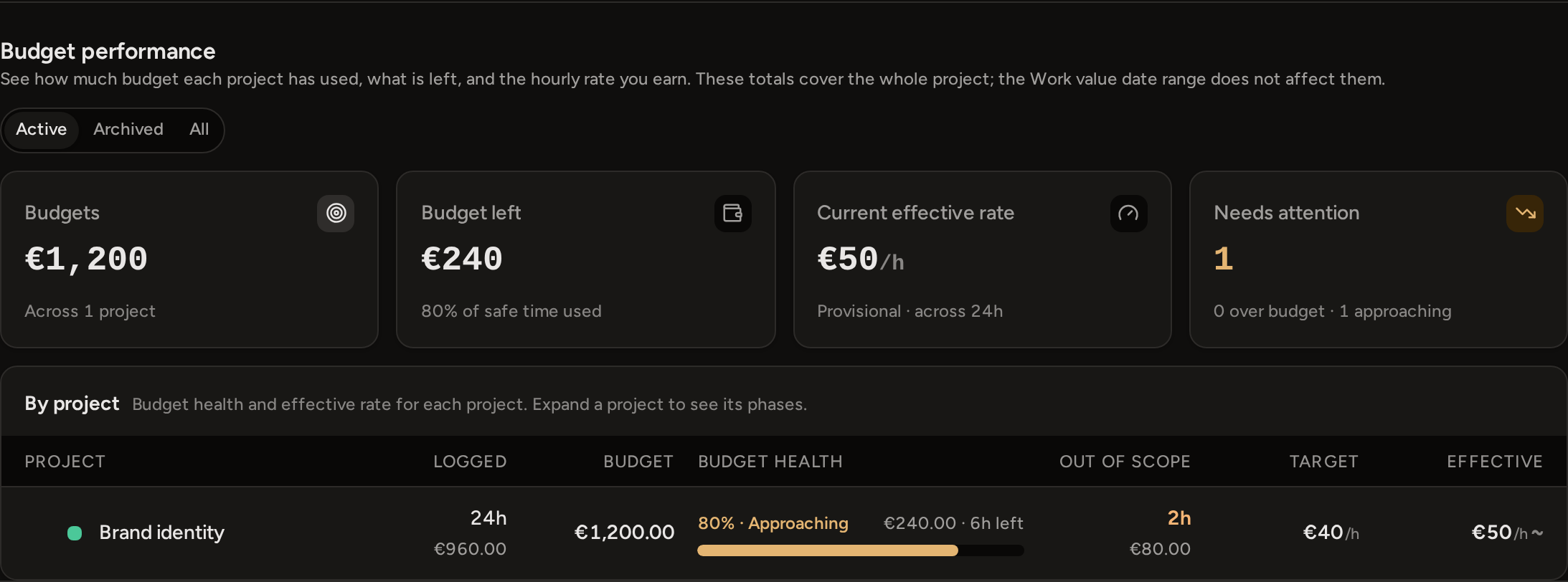
The effective rate is the agreed price divided by the original-scope hours tracked so far. In the picture, €1,200 over 24 hours is €50 an hour, above the €40 rate, and the 2 out-of-scope hours are not in that division. The rate changes as more time is logged and settles when the work is done.
7. Separate genuine extra work
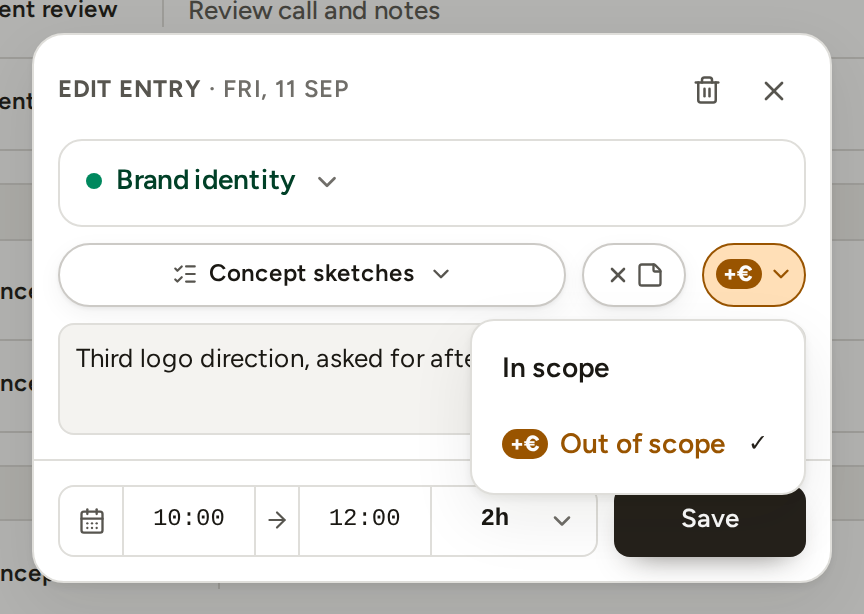
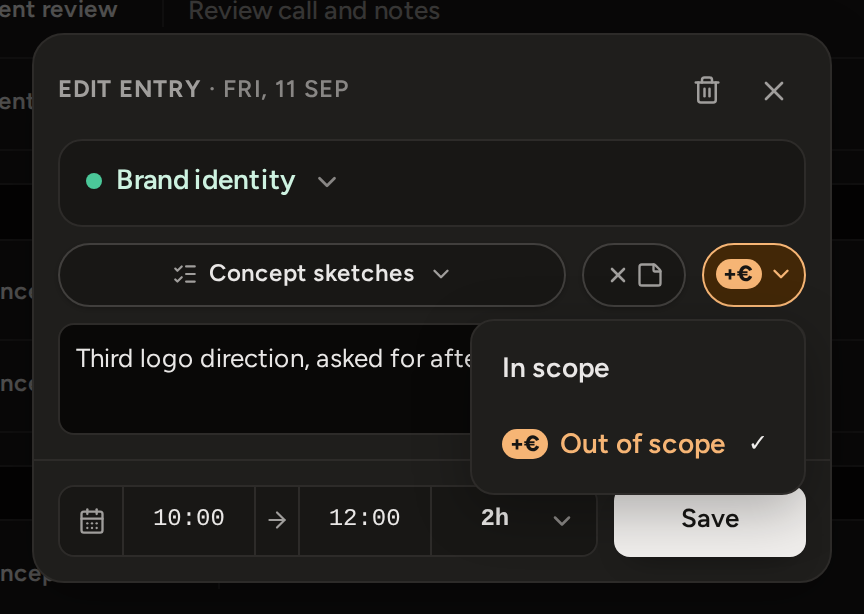
If the client asks for work outside the agreement, mark only those entries Out of scope. This works once the project has a budget. They stay in your records but stop using the original budget. You can price such work separately as Additional Work on a Phase or Project Report.
8. Create a report and continue
Use a Time Report for a date range, a Phase Report for one phase, or a Project Report for several phases or the whole project. Open the saved report to check it, then download the PDF and share it outside Phased.
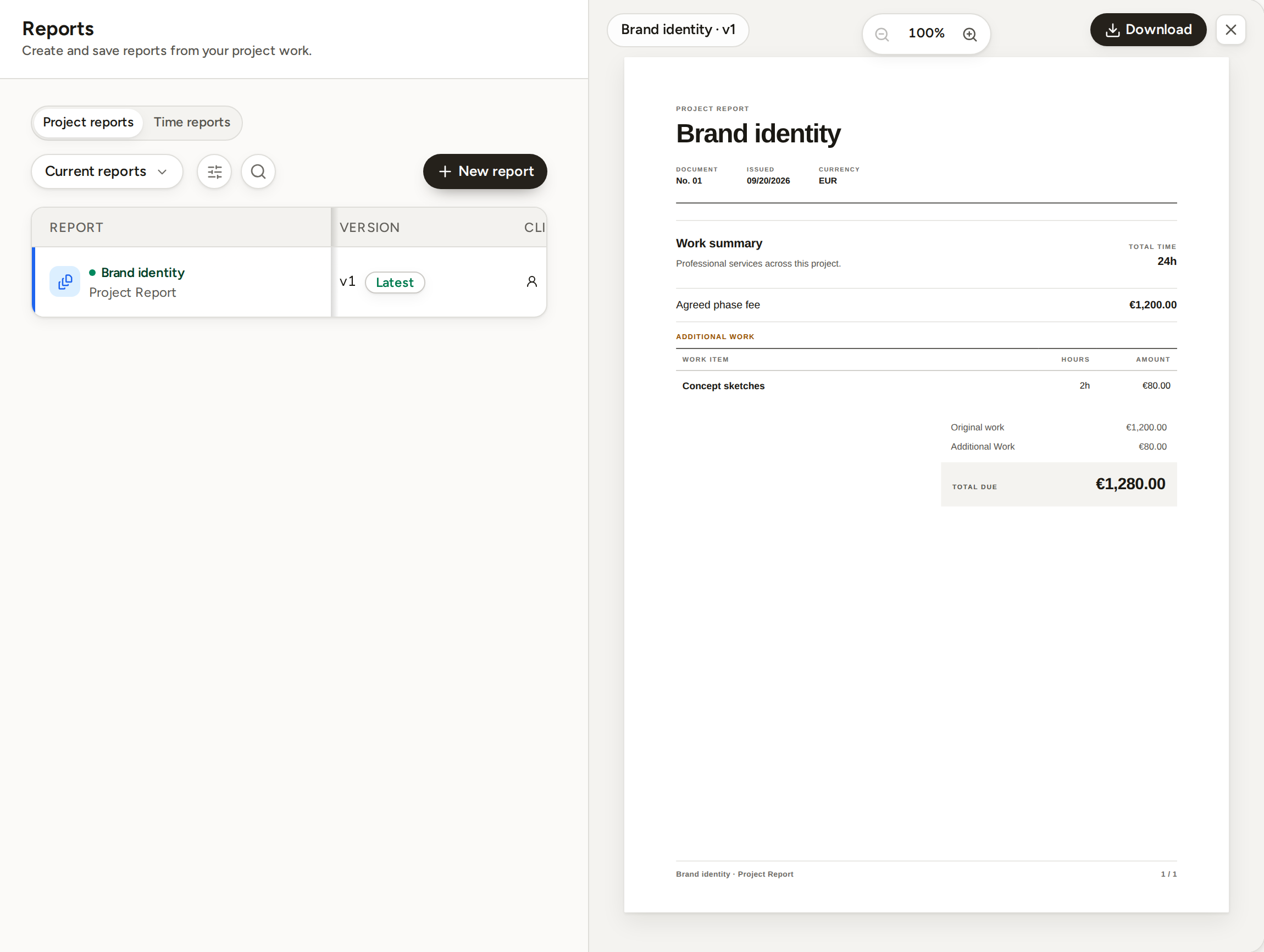
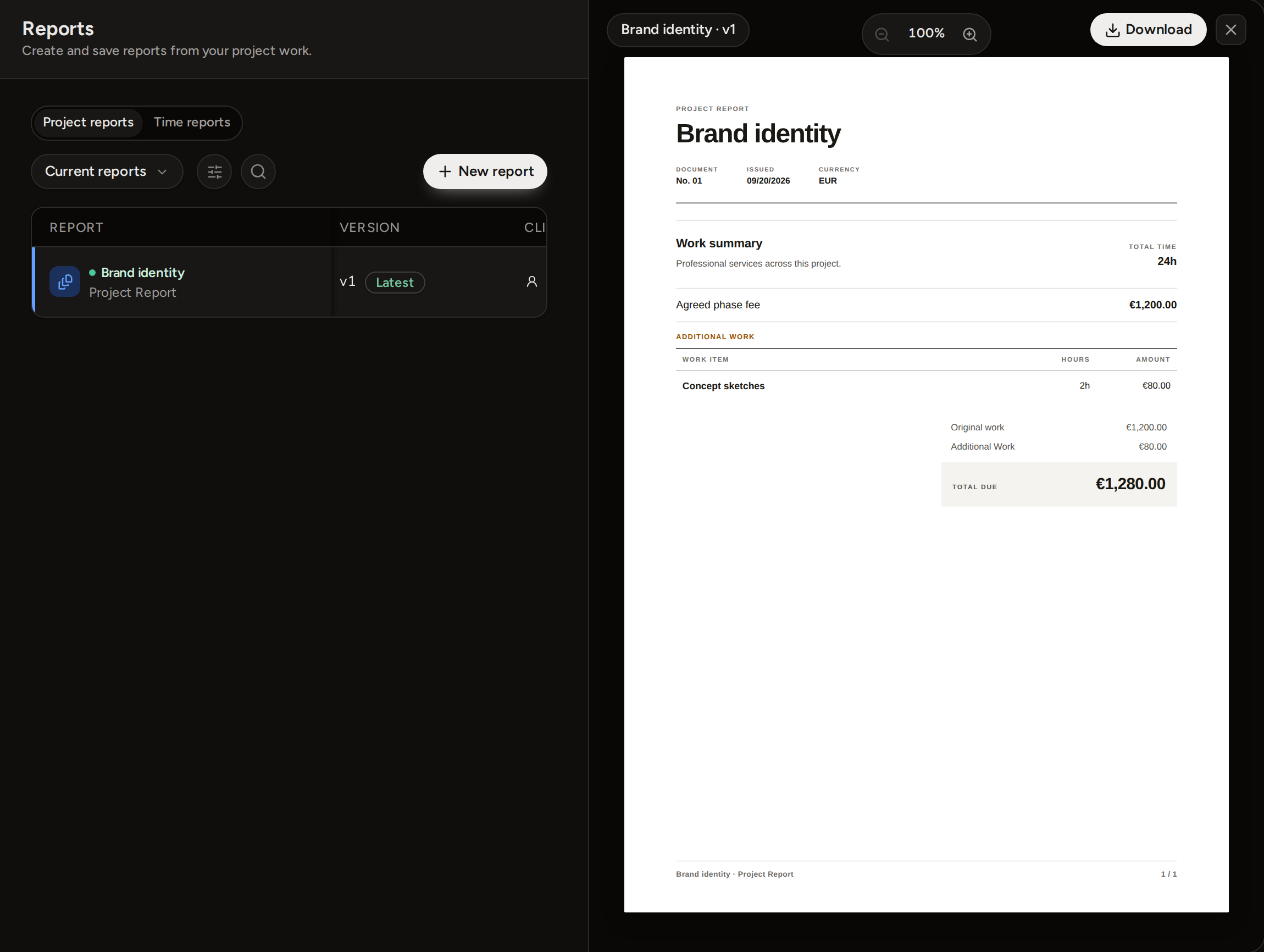
Reports freeze their work and money figures, so later entry edits do not rewrite those saved figures. If this was practice, delete the report, then delete the project. Phased tells you how much time goes with it. A Phase Report also marks its phase reported, so choose Mark unreported on that phase first. Archive a finished project to keep its history. Save a repeatable setup as a template for the next job.
More on the steps: Time entry, Out of scope and Free and Pro.