Time Report
A Time Report freezes matching entries from a date range into a document. A client copy on any plan, a fuller internal copy on Pro, then download the PDF.
Create a Time Report
A Time Report takes the time you tracked in a date range and saves it as a document. Write it for a client. Or, with Pro, create an Internal version: a more detailed copy for yourself.
- On Time, set the date range and filters you
need. Open Export and choose Time report.
The report form takes over the date range, the selected projects, the task-name filter and the Group by choice from the Time page.
- You can also start from Reports. Press New report, choose Time report, then set the range and projects yourself.
- Choose who it is Written for: Client or Internal.
- Pick the dates with the From / To pickers, or a shortcut: This month, Last month or Last 30 days.
- Tick the active projects to include, then choose Group by: Day, Project, Client or Phase.
- Press Create report.
If you started from Time, Phased also starts the PDF download. You can find the saved report later under Time reports in Reports.
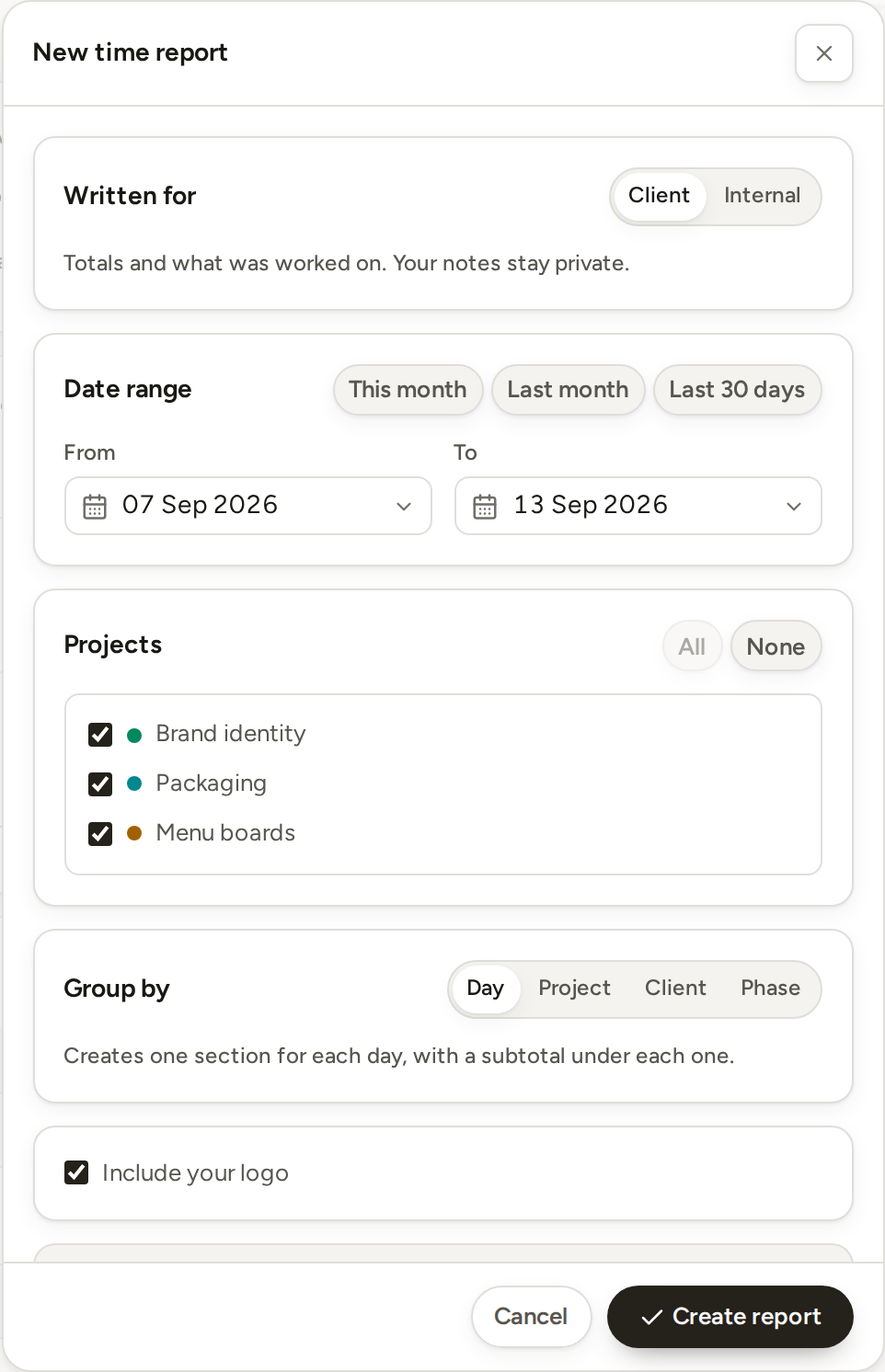
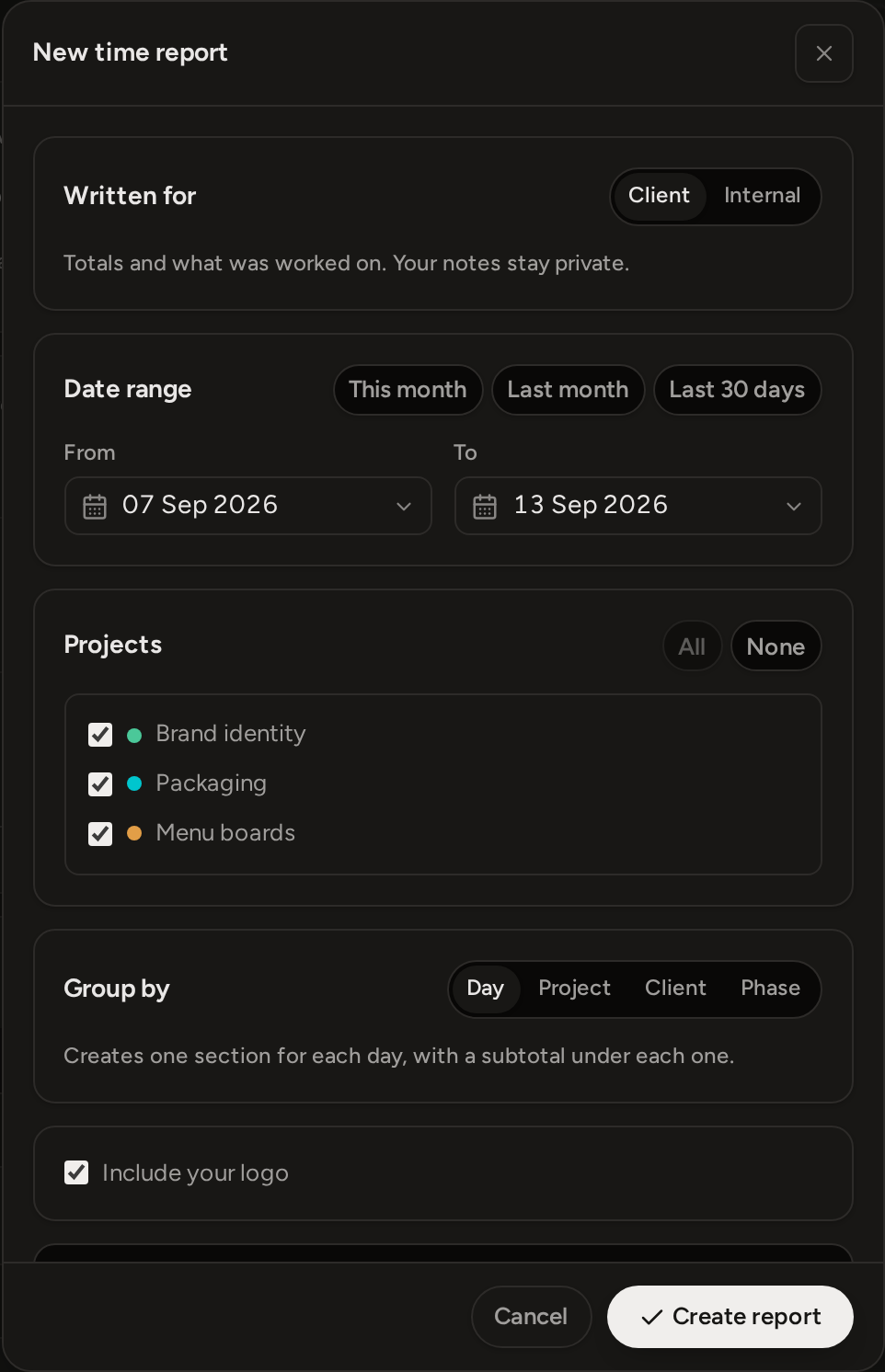
- A new Time Report can include active projects only. The Time page may still show time from an archived project, but the report form does not list that project.
- A client report cannot contain work for more than one named client. Narrow the selection to one client, or use an Internal report. Projects without a client do not count towards this limit.
- For a client report, the form does not select internal projects at first. All selects every active project, internal projects too. Check the list before you create the report.
- The report does not take over a Phase or Scope filter from Time. It includes every phase and both scopes (in scope and out of scope) for the selected projects and task names. The form tells you this before you create the report.
- You can press Create report only when the date range is valid, at least one project is selected and some tracked time matches. If a timer is running on matching work, stop it first.
Dates and grouping use the time zone of the browser or device where you create the report. They do not change after that.
What it shows and what it hides
A client report shows the tracked time, the number of entries and one line for each entry, grouped the way you chose. On Pro it also shows the value, but only where that value is what the client pays. It never prints your notes.
An Internal report adds days worked, averages per day and per entry, an Additional Work total, unpriced time and your note beside each entry.
- "Additional Work" on the report is the same time you marked Out of scope in the app.
- A client copy shows a price only where the rate is what the client pays: on an hourly phase with no budget, and on Additional Work. On a phase with a budget, the rate is internal, so the client copy does not show it.
- When you create the report, Phased saves a fixed copy of the selected entries, project and task names, times, scope marks, rates, currency, grouping and totals. If you track more time or rename work later, the report does not change.
What you can change after creating it
To change how the report looks, open its row menu in Reports and choose Edit. The saved work and figures do not change.
- Switching a client report to Internal needs Pro.
- An Internal report that contains more than one named client's work cannot be switched to Client.
- Each time you open or download an older report, Phased uses your current studio details, logo, number and date formats, plan and audience choice. These change only how the report looks. They do not recalculate its saved entries or amounts.