Out of scope
Mark an entry Out of scope when the work was outside the agreement. It leaves the phase budget and is priced as Additional Work on reports. Never automatic.
Every entry starts in scope and counts against its phase's budget. When the client asks for something outside the agreement, mark those entries Out of scope. They stay in your records, but they no longer count against the original budget. A Phase or Project Report can add them to the agreed price as Additional Work.
Mark an entry Out of scope
Out of scope is a switch in the entry editor, at the end of the task row. Turn it on to mark the entry. On the calendar, a marked entry's block shows a badge with + and the currency sign.
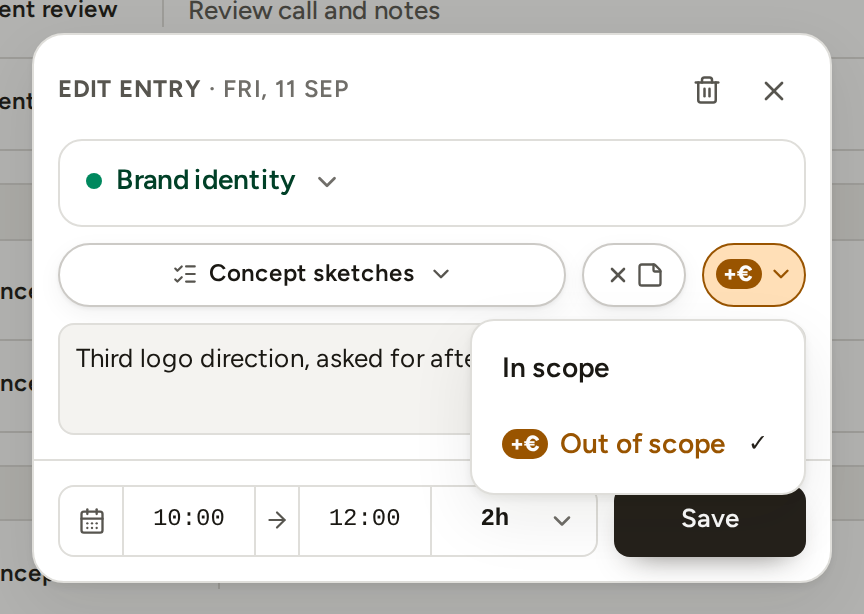
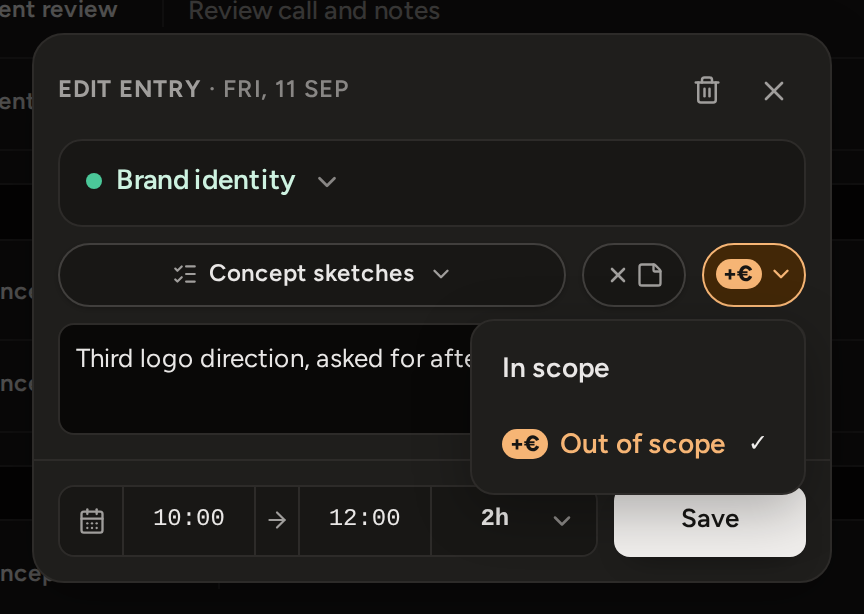
- Open the entry.
- Turn on the Out of scope switch at the end of the task row.
- Press Save.
- You can mark an entry while creating it, in the same panel. The switch appears once you choose a project and its phase has a budget.
- In the calendar's List view, move the pointer over a row to show its Mark as out of scope pill. To mark several rows at once, select them and use the bar above the list. On a phone, use Out of scope in the row's Entry actions menu.
- One task can have both in-scope and out-of-scope hours, because scope belongs to each entry, not to the task. So the same task can appear twice on one report: once in the agreed work and once under Additional Work.
When you can mark work Out of scope
Out of scope means work outside an agreed budget. So the switch only shows where there is a budget.
- The phase needs a budget in money or hours. Without a budget, the editor shows no switch, and the List view shows no pill. Set a budget under Phases, budgets, rates.
- You cannot mark work on a project with Internal project switched on, so the switch does not show there. Internal work earns no money from a client and never appears in client reports.
Switch it back
Open the entry, turn off the Out of scope switch and press Save. A marked entry always shows the switch, so you can switch it back even if the phase's budget was removed after you marked it. In the List view, a marked row's pill reads Out of scope. Press the pill to switch the entry back.