Phase and Project Reports
Choose one phase for a Phase Report or several for a Project Report. Creation freezes the work and money figures, and a new version captures later changes.
Create a Phase or Project Report
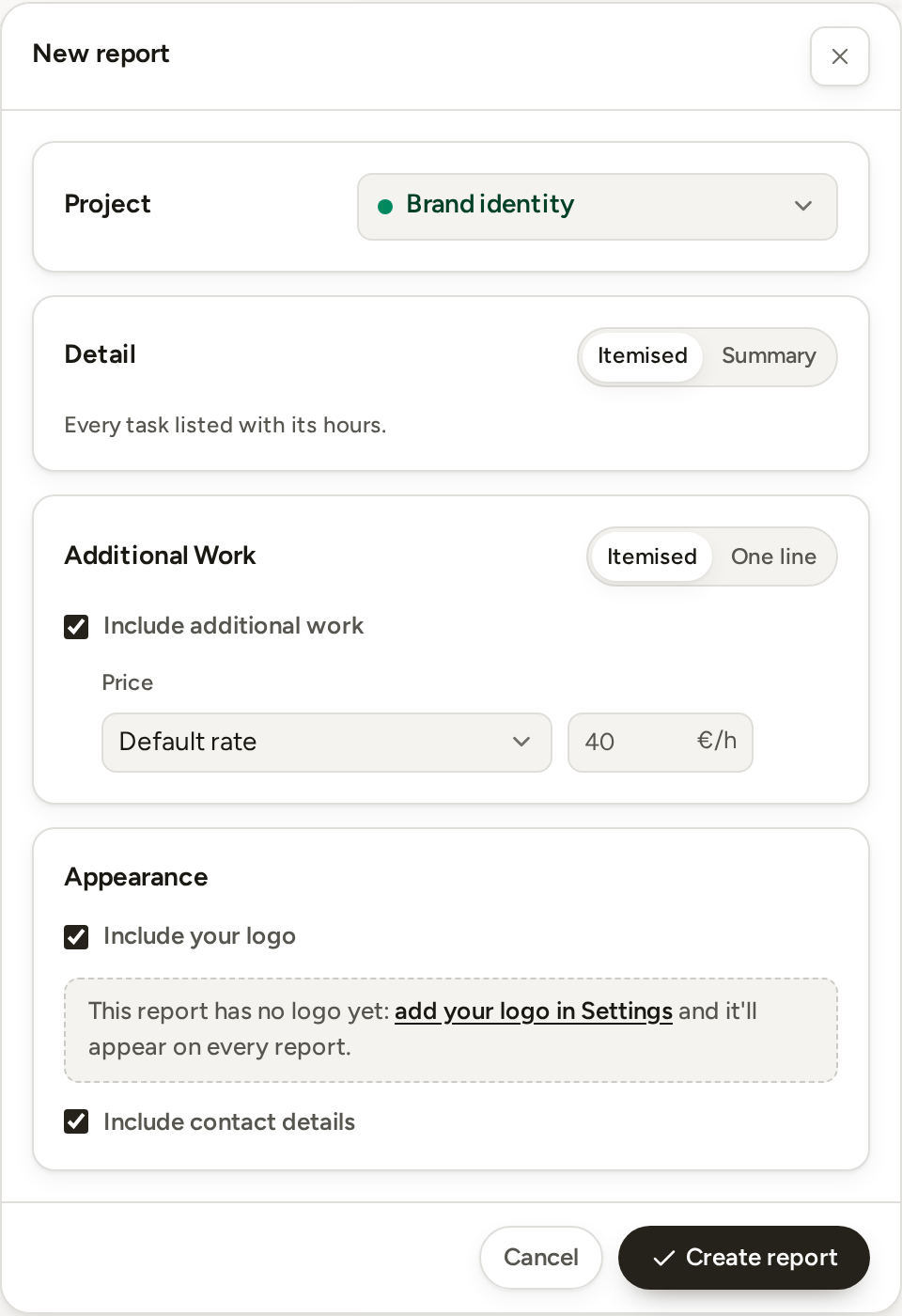
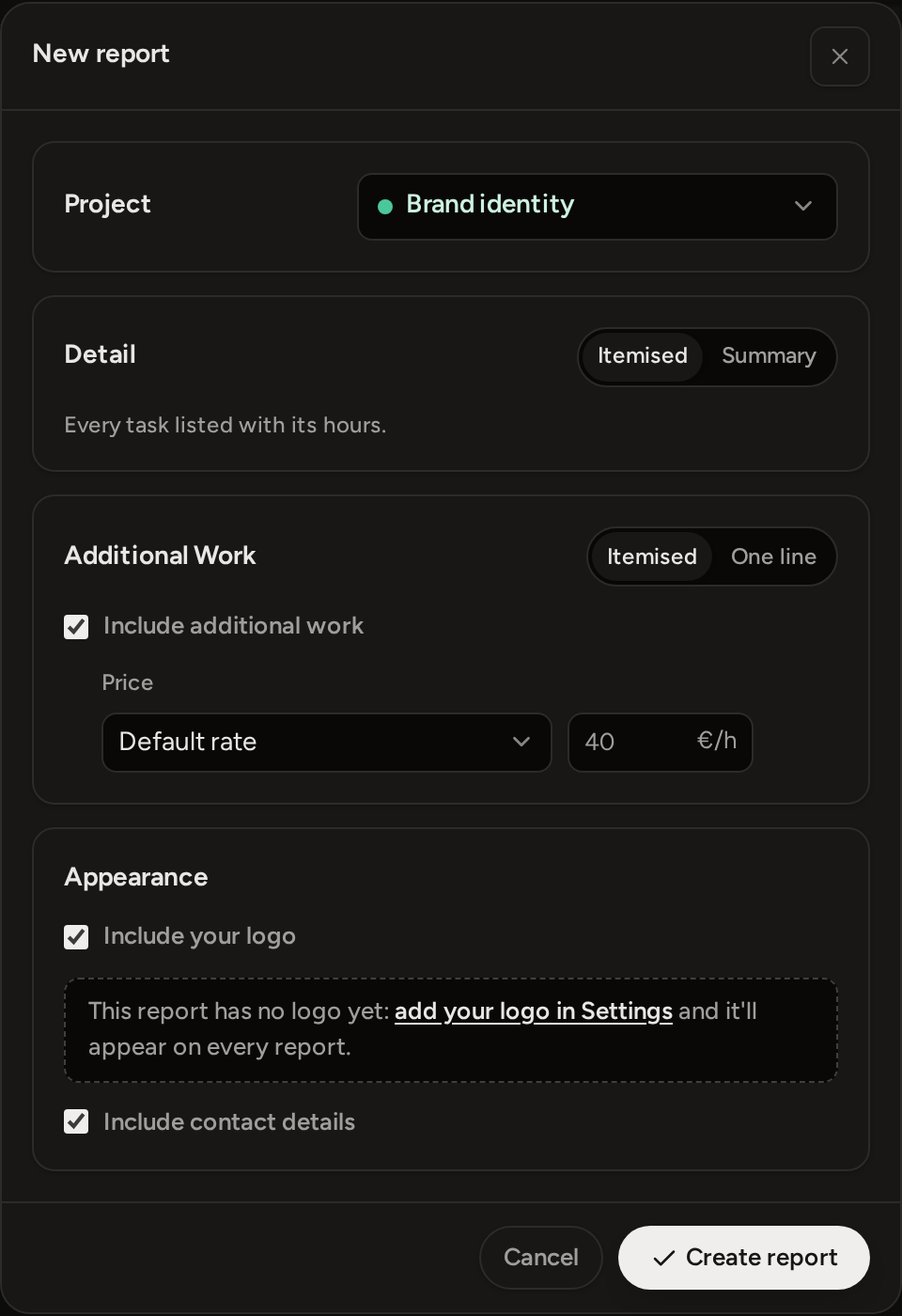
Open Reports, press New report and choose Project report. Or choose Create report from a project's menu on Projects, which opens the same form directly.
- Choose the Project.
- Choose Whole project, or choose Phases and select the phases to include.
One selected phase creates a Phase Report. A whole project or several selected phases creates a Project Report. On a simple project, the report always covers the whole project.
- Pick the Detail. Phase Reports offer Itemised or Summary. Project Reports with two or more phases also offer By phase.
- If the selected work includes Additional Work, decide whether to include it and how to price it: Default rate, Custom rate or Fixed fee.
Fixed fee is available on a Phase Report. On a Project Report, it is available only when all the Additional Work belongs to one phase. You can also leave Additional Work out. The report then shows only the agreed work.
- Under Appearance, choose whether to include your logo, and whether to include the contact details (yours and the client's).
- Press Create report. Open the saved row to preview it, then download its PDF when it is ready to send.
What stays fixed and what can change
When you create a report, Phased saves a fixed copy of the project, phase and client names, the selected work, hours, currency, rates, fees and amounts. If you later edit the project, change a rate, give the project a different client or track more time, the saved report does not change.
Some presentation choices stay editable. Open the report menu and choose Edit to change its detail level, how Additional Work is shown, or whether the logo and client contact block appear.
Each time you open or download the report, Phased uses your current studio name, logo, studio contact details, number format, date format and plan (your letterhead on Pro, the Phased credit on Free). So if you change one of these, an older report can look different. Its saved work, client details, currency and amounts do not change.
To include newer hours or prices, create another report. It gets the next version number. The newest row has the Latest label, and you can still open the earlier versions.
Reported and paid
When you create a Phase Report, Phased marks that phase Reported straight away, before you download or send the report. Creating a Project Report does not mark any of its phases Reported.
Reported and Paid are separate phase flags. Open the phase status menu on Projects to set or clear either one. If a phase is both, the status column shows Paid. A project with several phases shows progress, such as 1/2 paid, until all its phases have the same mark.
In the menu of a phased project, Mark all reported and Mark all paid change every phase at once. Changing these flags does not change a report you already created.
Download, archive or delete a report
Creating a report saves it in Phased. It does not email or share it. Use Download in the preview, or Export PDF from the row menu, to create the file you send.
- Archive hides the report from the current list. Use the archived view to restore it.
- Delete permanently removes the report contents and cannot be undone.
- Phased never gives a deleted report's number to a later report.