Clients and projects
Save a client's contact details and assign one client to each project. Reports can carry a frozen client block, and archiving hides the client from pickers.
Create a client with full details or with a name only
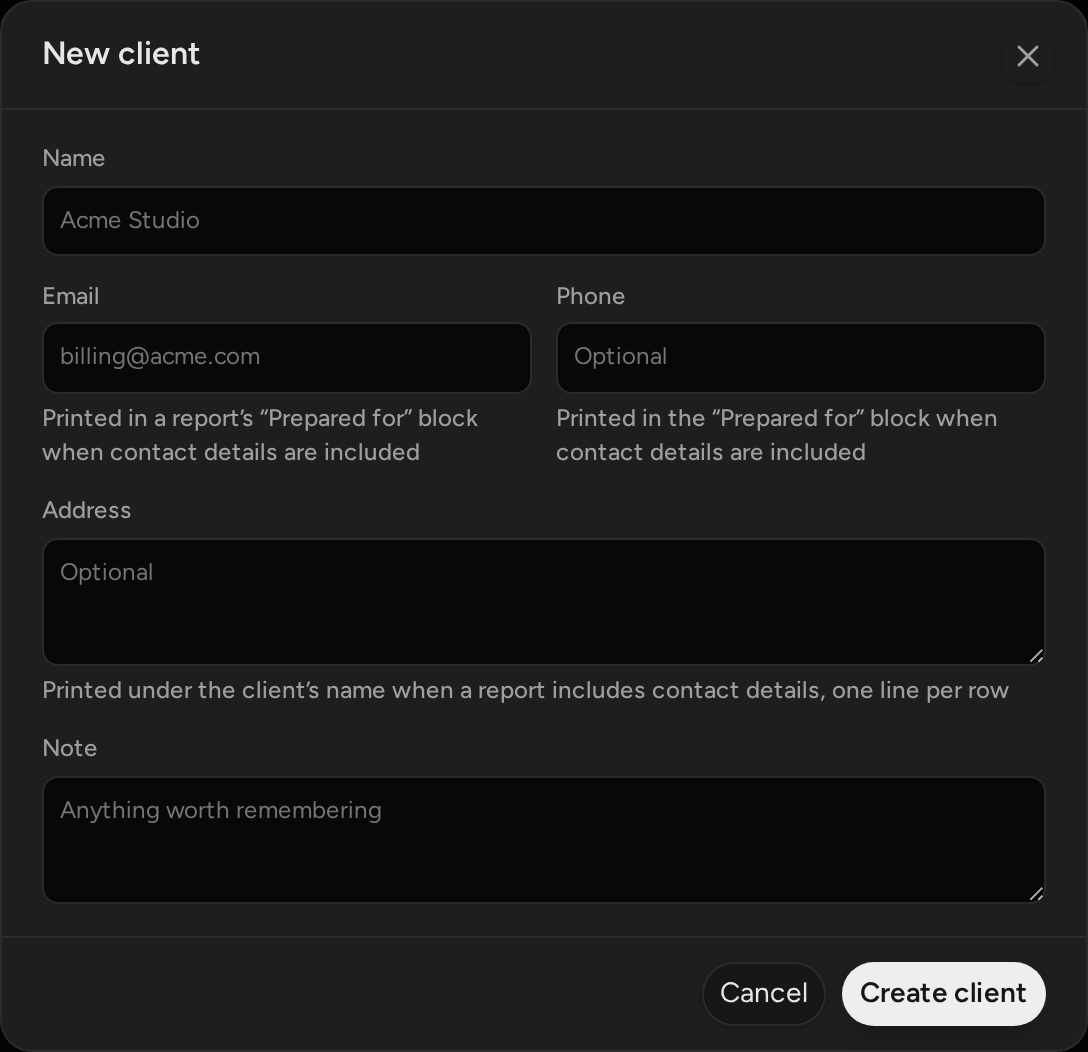
Use Clients › New client when you want a full client record. The record holds the client's name, email, phone, address and a private note.
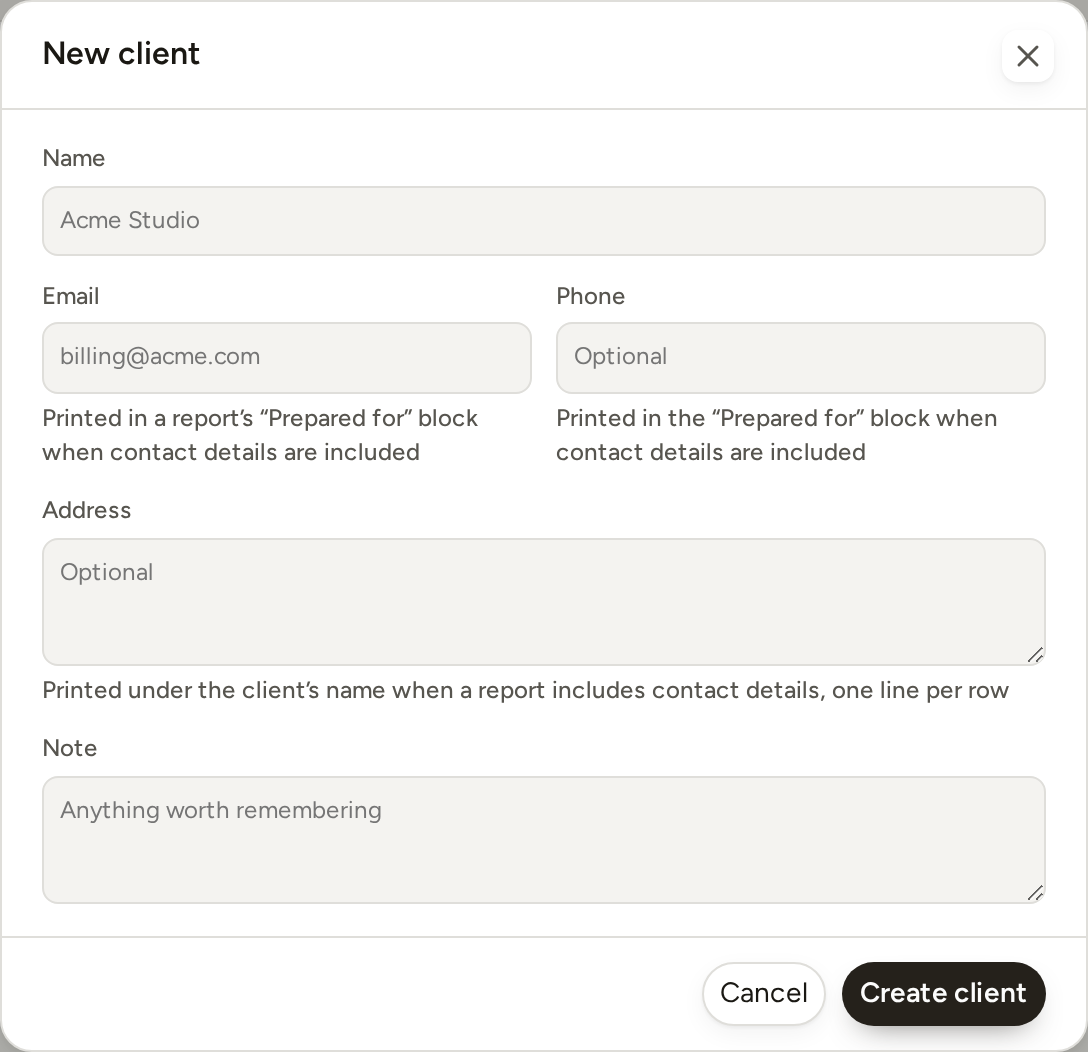
You can also create a client while choosing one for a project. Type a new name in the Client picker and press the + Create row. This quick way saves only the name. A message then appears with Add details. It opens the Clients page, where you can edit the client and add the other details.
Assign a client to a project
A project can have one client at most. You set it in the Client row, which is the same in New project and Edit project. Until you choose a client, the row says Add.
- Open New project, or open an existing project’s menu and choose Edit project.
- Press the Client row.
- Search for the client by name, or type a new name and press the + Create row that appears.
- Choose the client from the list, or choose No client to clear it.
What appears on reports
A Phase Report or Project Report can include a Prepared for block. It shows the client’s name, address (with the line breaks you typed), email and phone. The Include contact details checkbox under the report's Appearance turns this block on or off. The same checkbox also turns your own studio details on or off. It is on by default, and you can change it later through Edit. A Time Report never includes this client contact block.
- Only the name, address, email and phone can appear on a report. The private note never appears.
- A project with no client has no Prepared for block, even when the checkbox is on.
The client details in this block are saved when the report is created. A report you already made does not change if you later edit the client, give the project a different client, or archive the client. It keeps the client details it had when it was issued.
Archive, restore or delete a client
Archive a client when you no longer need to choose them for new work. An archived client no longer appears in client pickers, but existing projects keep that client. To see archived clients, use the status filter on the Clients page. Then choose Restore client to make one available again.
- If a client has any project, even an archived one, Phased keeps the client as history. You can only archive it.
- A client with no projects can be permanently deleted.
- Bulk Delete follows the same rule. It deletes clients that have no projects and archives clients that still have projects.