Time entry
An entry is time on a project and one of its phases, with an optional task and note. Open it to change any of those, move it to another day, or delete it.
Every entry has a project, a phase, a start and an end. On a simple project, Phased chooses the phase for you. A task, a note and the Out of scope mark are optional. To edit an entry, select its block on the calendar. Or, in the calendar's List view, open the row's Entry actions menu and choose Edit. Both ways open the same editor.
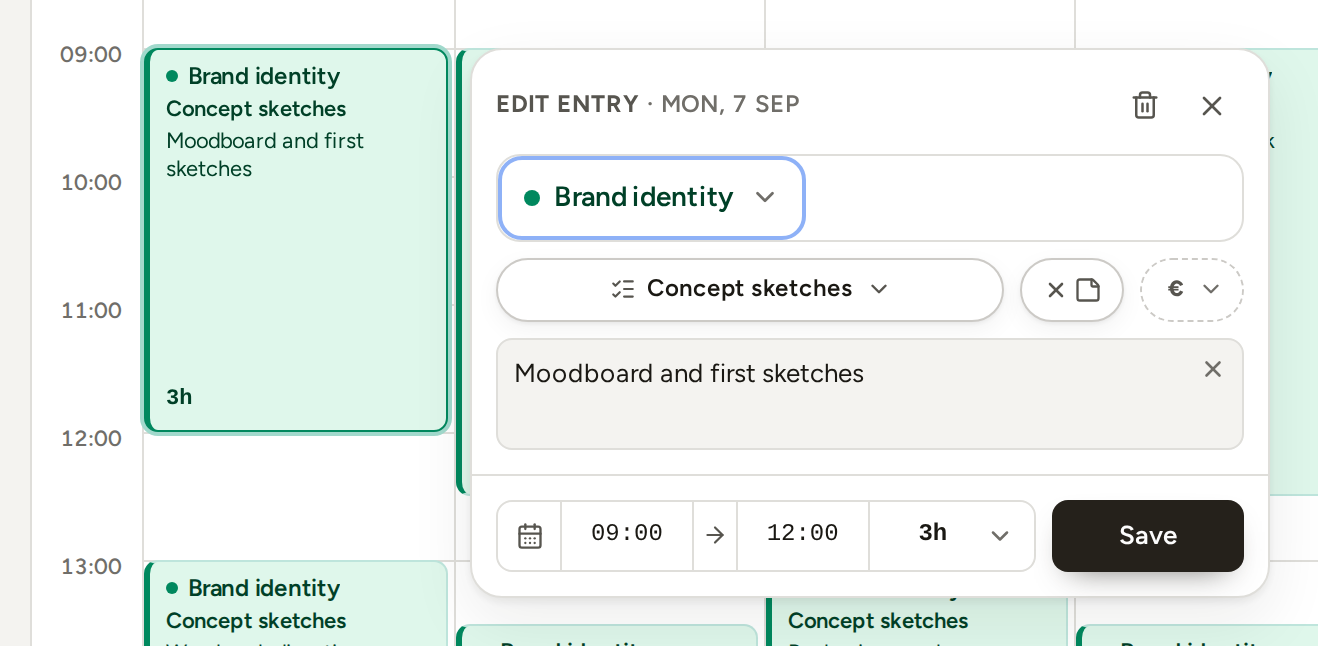
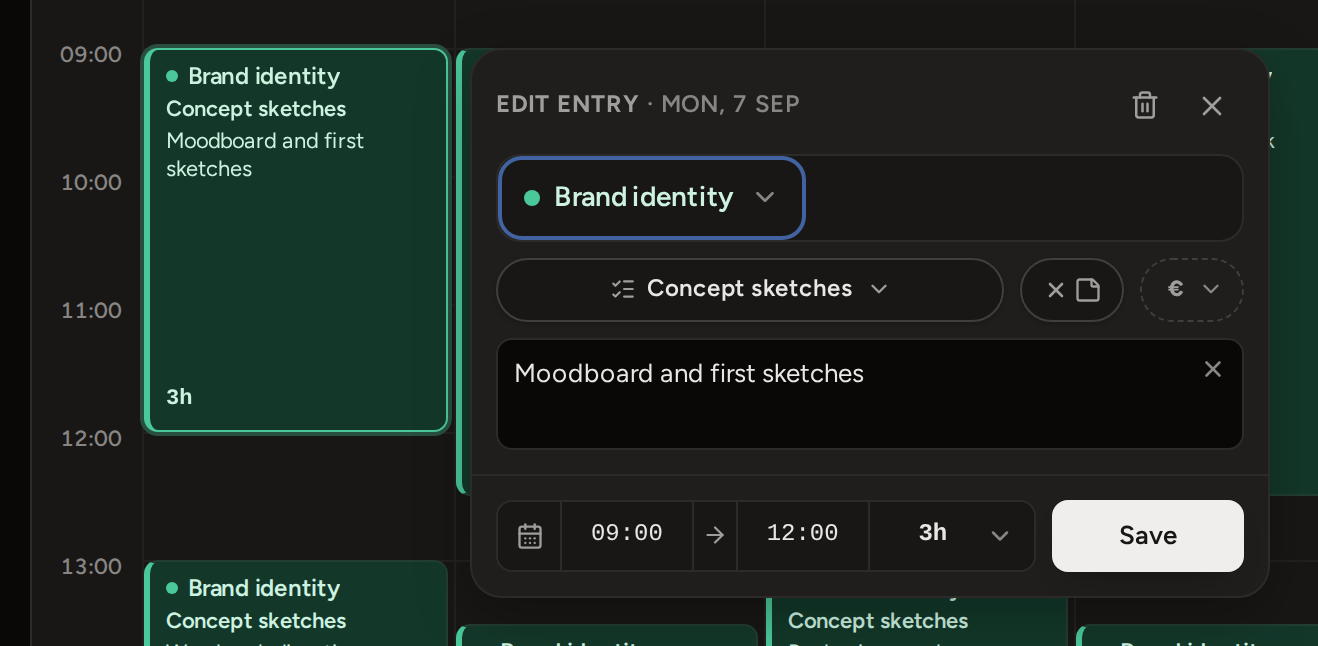
The header at the top of the editor has the start button (▶), Duplicate entry, the bin and Close. The start button and Duplicate entry are explained in Copy and continue.
Below the header is the project and, on a phased project, its phase. The next row has the task, the note switch and the scope control. The note itself is under that row. The footer has the day, the start and end times, the duration and Save. Nothing changes until you press Save. Close or Esc discards your changes, and the entry stays as it was. A click outside the editor closes it only if you have not changed anything. A press on an empty part of the calendar always closes the editor and starts a new entry.
Project
The project is the first control. Open it to move the entry to another project.
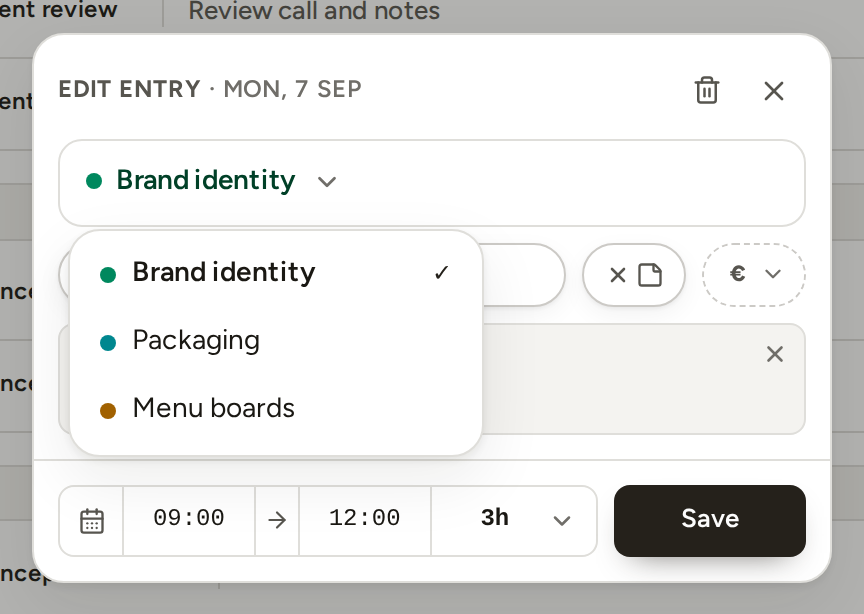
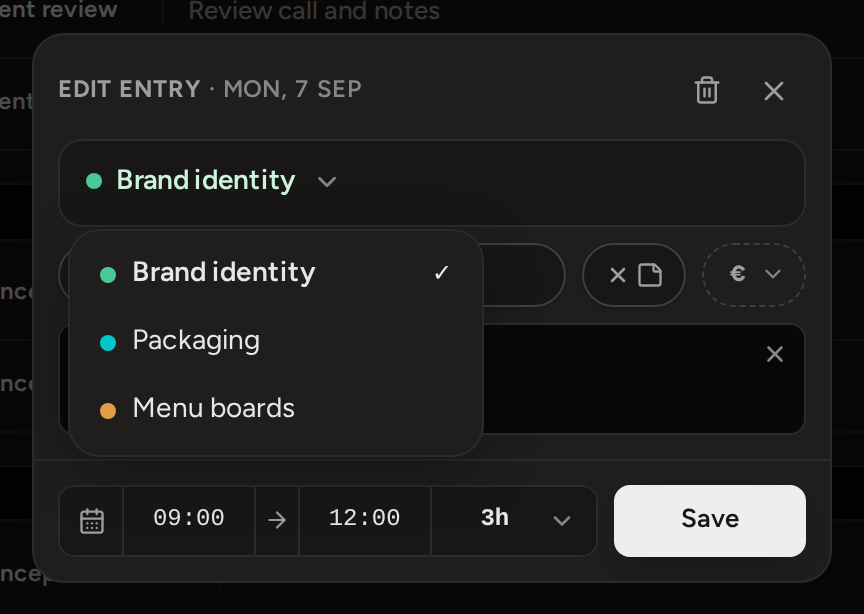
- If you have more than six active projects, the list has a search field at the top.
- If you move an entry to a phased project, Phased puts it on the phase you last used in that project. If there is none, it goes on the first phase.
- When you change the project, Phased removes the task from the entry, because a task belongs to one phase of one project. Choose a task again from the new project's list.
Phase
On a phased project, the phase control is next to the project. Open it to move the entry to another phase of the same project.
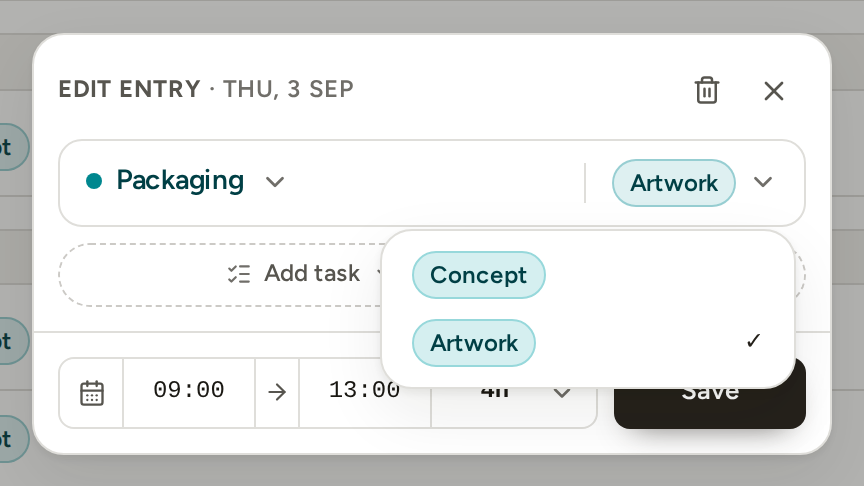
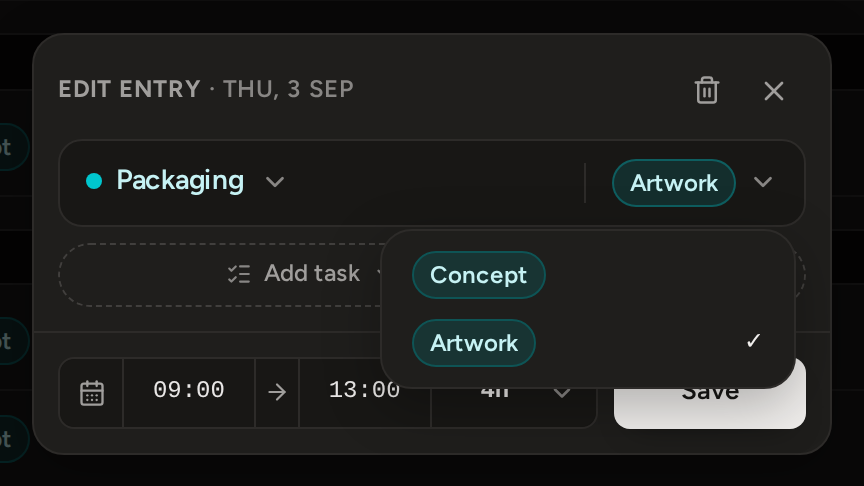
- A simple project has no phase control. It has one hidden phase, and Phased puts every entry on that phase automatically.
- When you change the phase, Phased also removes the task, for the same reason as when you change the project.
Task
A task is a name for the kind of work. It is optional, and you can use one task on many entries. Open the task control to choose from the suggestions or to type a new name.
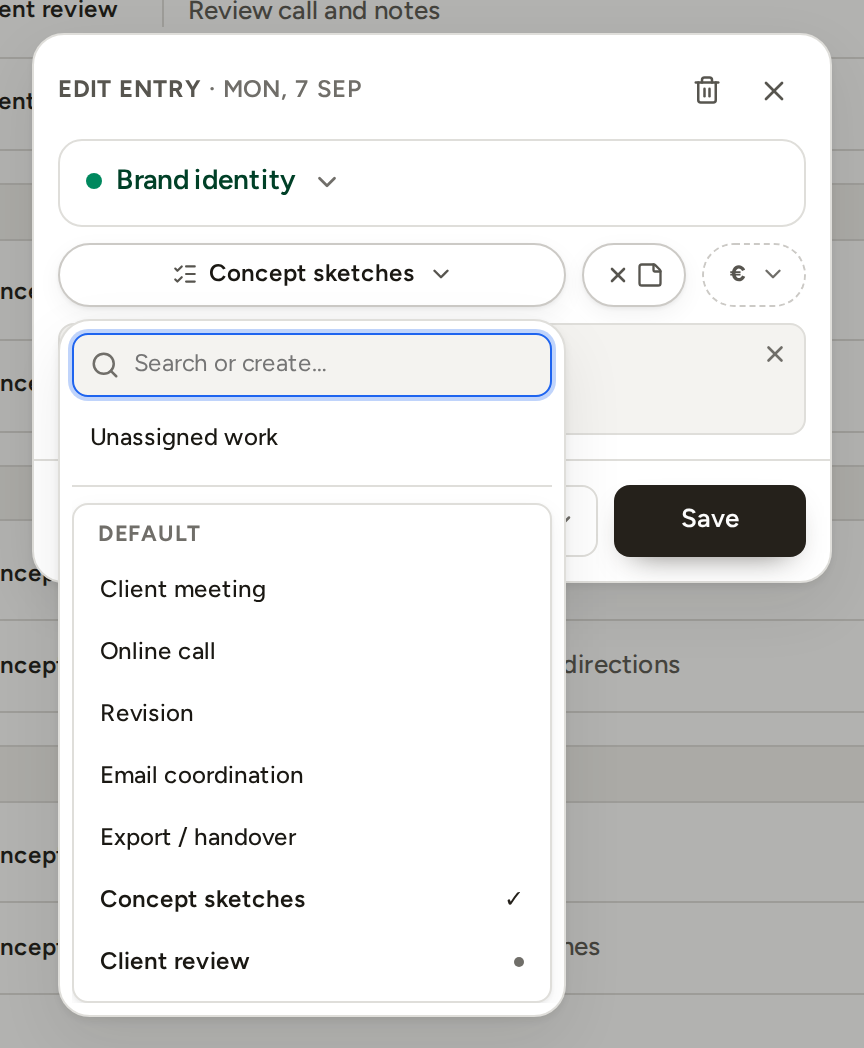
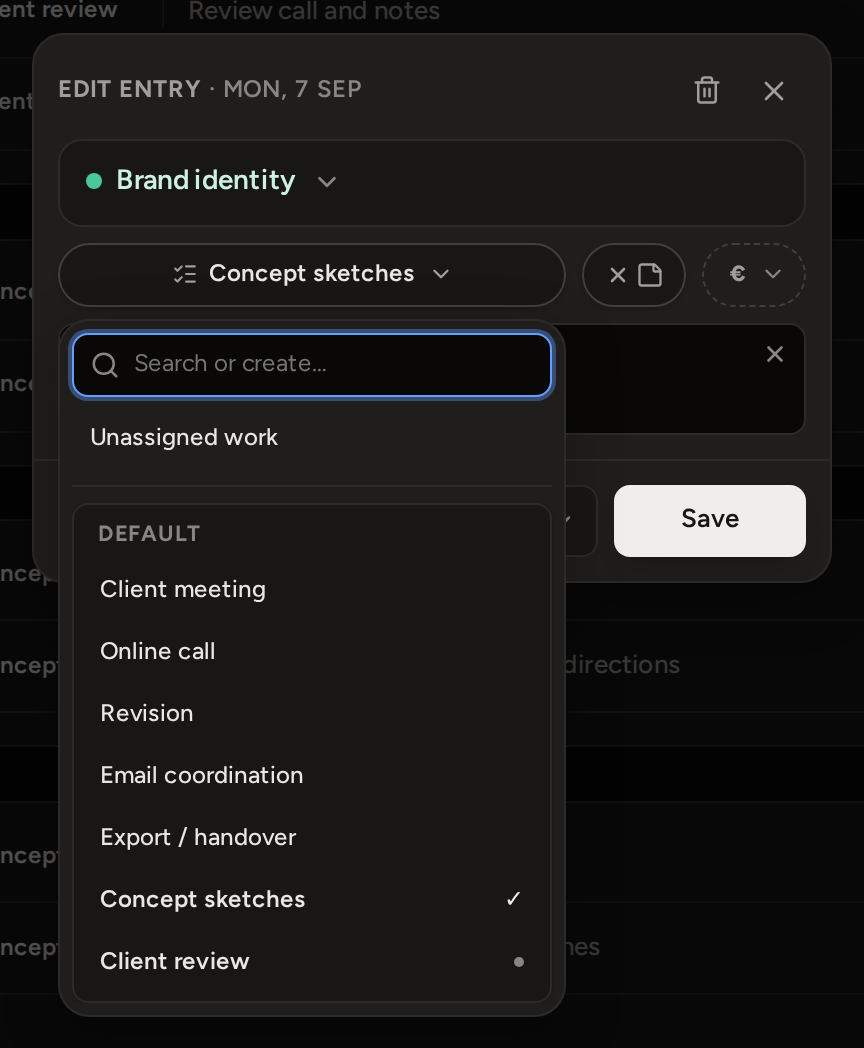
- Choose a name from the list. To remove the task from the entry, choose Unassigned work at the top.
- To add a name that is not in the list, type it and press the + Create row under the list. If nothing in the list matches, Enter also creates it.
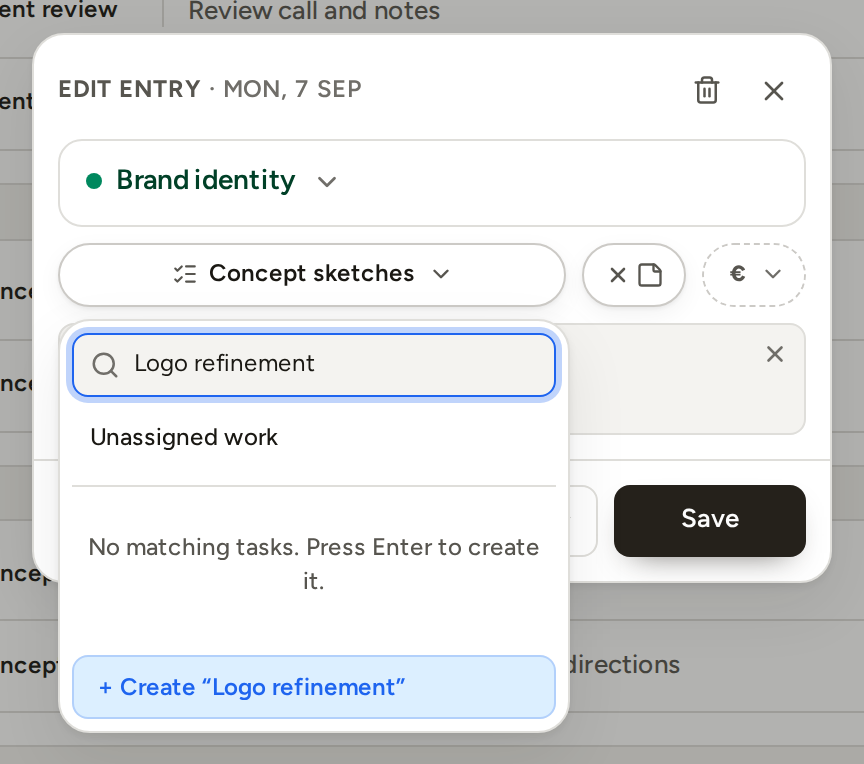
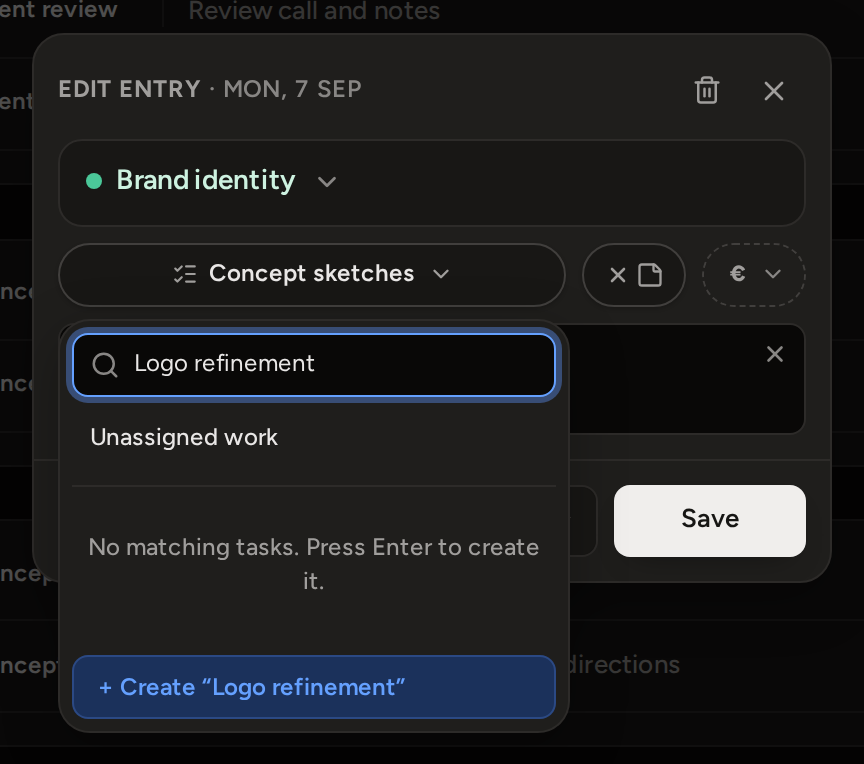
- A name you create here becomes a task on this phase. If no task group has that name yet, Phased adds it to your Default group. The name is then suggested on every phase.
- A dot after a name means the task already has time on this phase. Type to filter the list. If the list has tabs and your search matches only on another tab, the picker switches to that tab.
- You set up the task groups and their tabs on the Tasks page and in Edit project. Connecting groups to a project or phase needs Pro.
Note
A note is your own detail about this one entry. It shows on the calendar block and in an internal Time Report. It never shows in a client document.
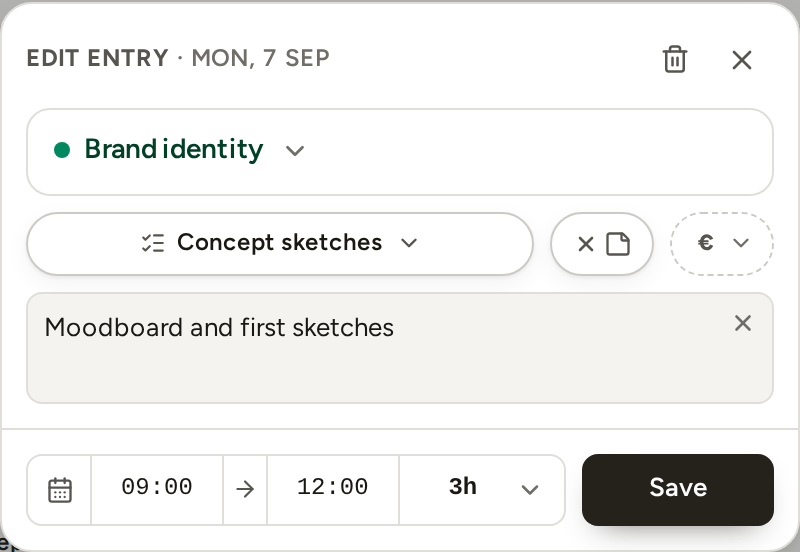
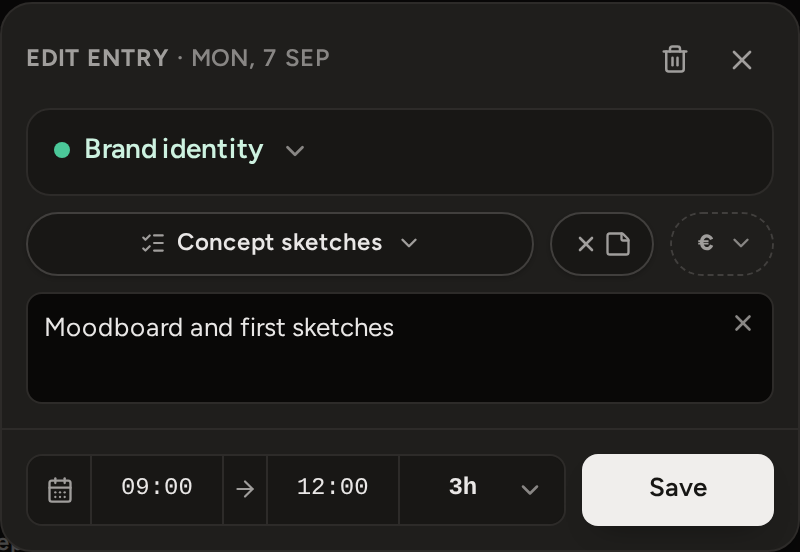
- Press Add note, the switch after the task. Type in the field that opens.
- Press Save.
- Clear note is the cross inside the field. It empties the text and keeps the field open.
- While the note is open, the switch reads Remove note. Pressing it takes the note off the entry. The switch then reads Restore note until you close the editor. Press it to bring the text back.
- If you close the editor without saving, the saved note does not change.
Day and time
The footer says when the entry happened and how long it lasted. From the left: the day, the start time, the end time and the duration.
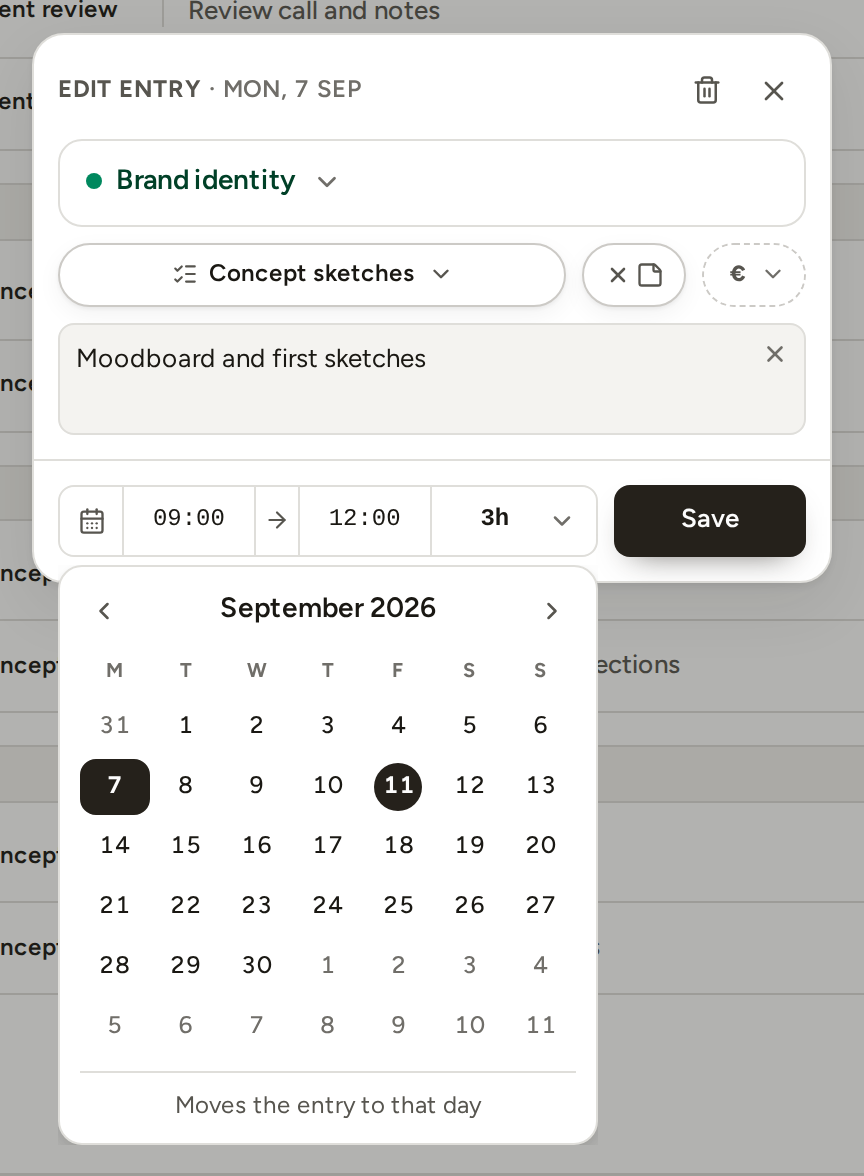
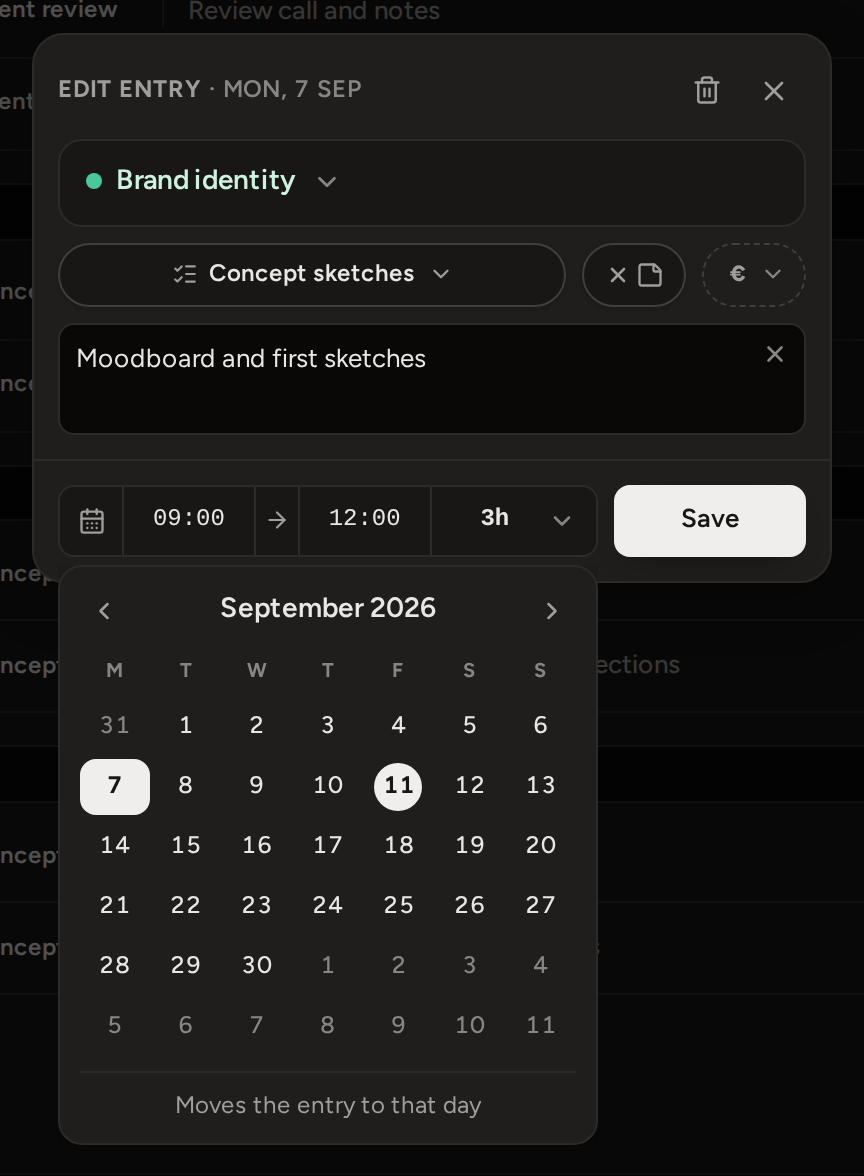
- Press Change day, the calendar icon, and choose a day. The entry moves to that day and keeps its start and end times.
- Press the start or end time to open the time picker. It has an hour wheel and a minute wheel that moves in five-minute steps. It also has four shortcuts for the quarter hours of the chosen hour. Each pick applies at once, and Done closes the picker. To type a time, press the number in the centre of a wheel and type over it.
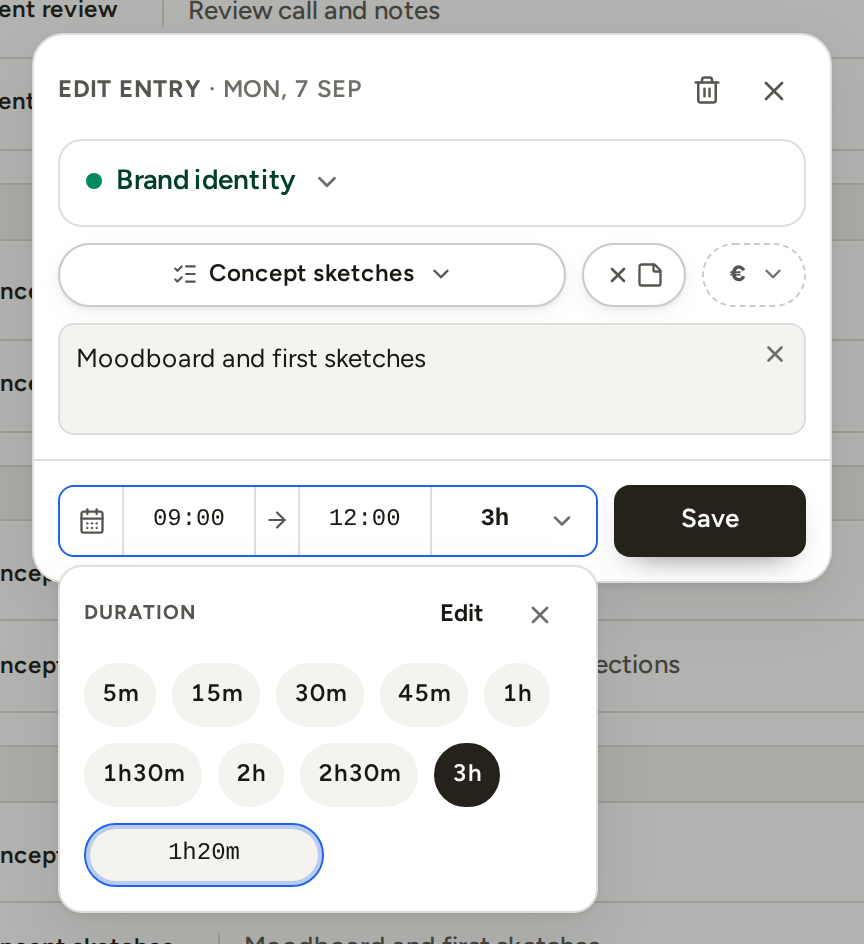
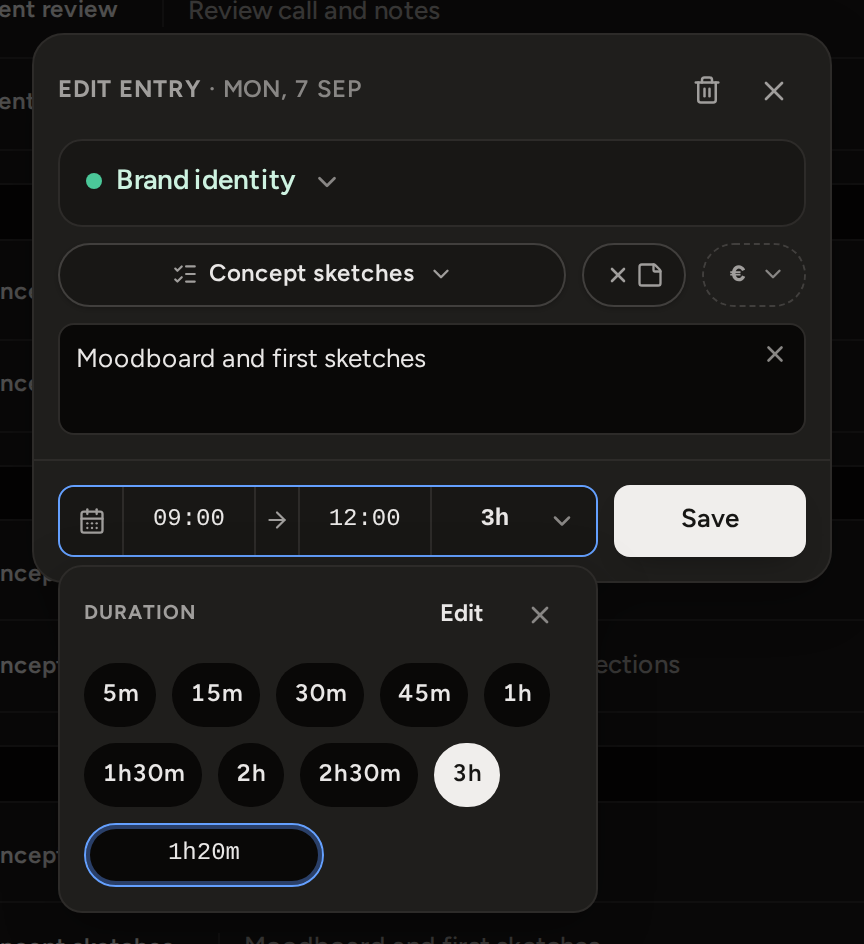
- Press the duration to choose a saved length. When you choose a duration, the start time stays the same and the end time moves.
- Press Save.
The duration panel is a list of quick picks that you can change. To add one, press +, type a length such as 1h20m or 80, and press Enter. Phased applies the new length to the entry and keeps it in the list.
- When a time field is focused, ↑ and ↓ change it by 15 minutes. Hold Shift to change it by an hour.
- Edit, at the top of the panel, puts a cross on every pick so you can remove it. When the list is different from the starting set, Reset to defaults appears. The list is saved in this browser only.
- When you drag on the calendar, times snap to 15 minutes. A typed time can be any minute, and an entry can be as short as one minute.
Delete an entry
Press Delete entry, the bin in the editor's header. The entry disappears, and the message Entry deleted shows an Undo button for ten seconds.
- If the entry's phase is already Reported or Paid, Phased first asks Delete time from a reported phase? The saved report does not change, but the project's current totals do.
- In the calendar's List view, each row's Entry actions menu also has Delete. You can also select several rows and delete them together. Phased asks you to confirm first.
- You cannot edit a running timer. Stop it first. For more on what you can delete, see Archiving and deleting.