App preferences
Choose how weeks, times, numbers and dates appear. Set the workspace time zone for reports and email, and pick light, dark, or a theme that follows your device.
Set up the week
Open Settings › Week & time to choose the first day of the week and whether the calendar normally shows five or seven days.
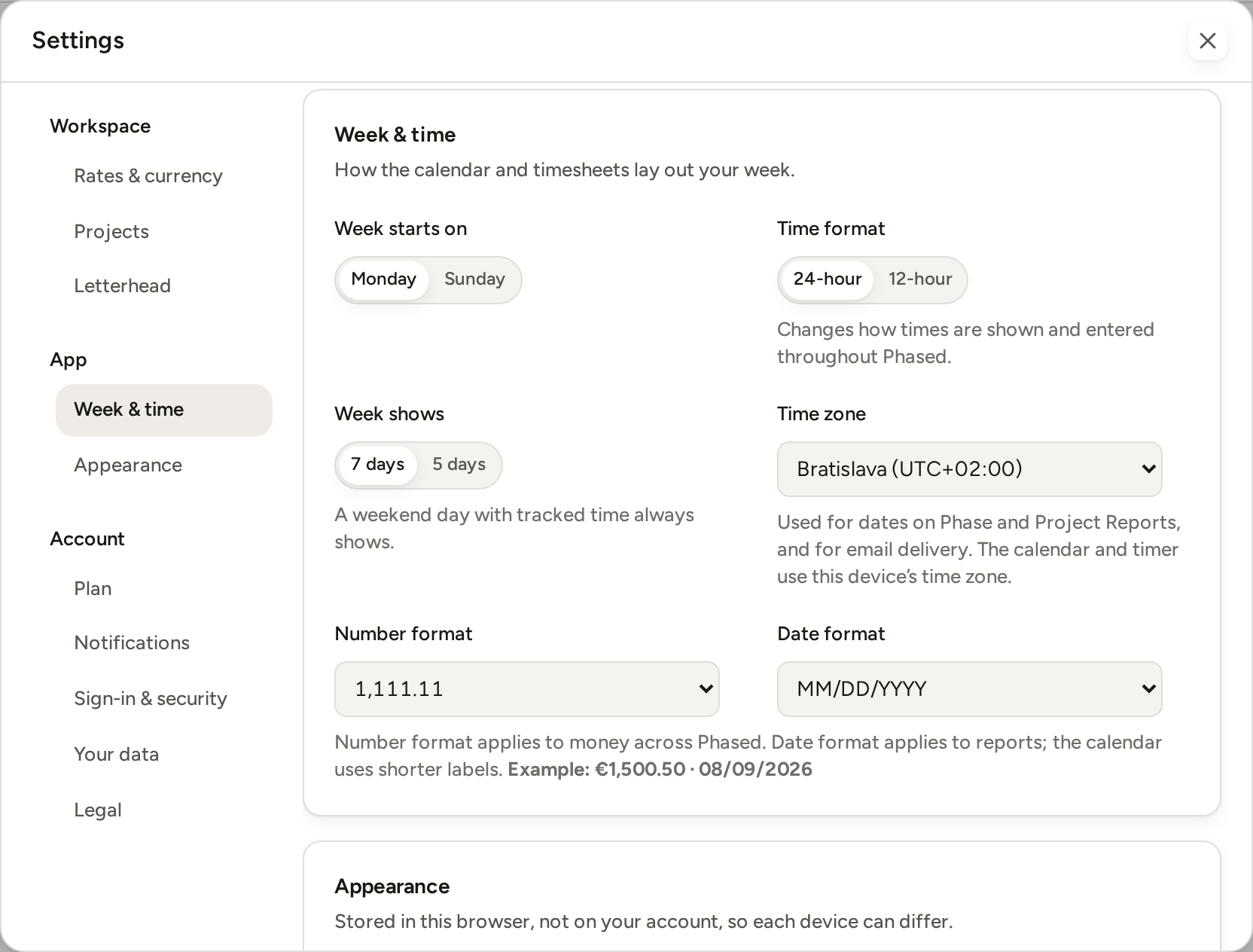
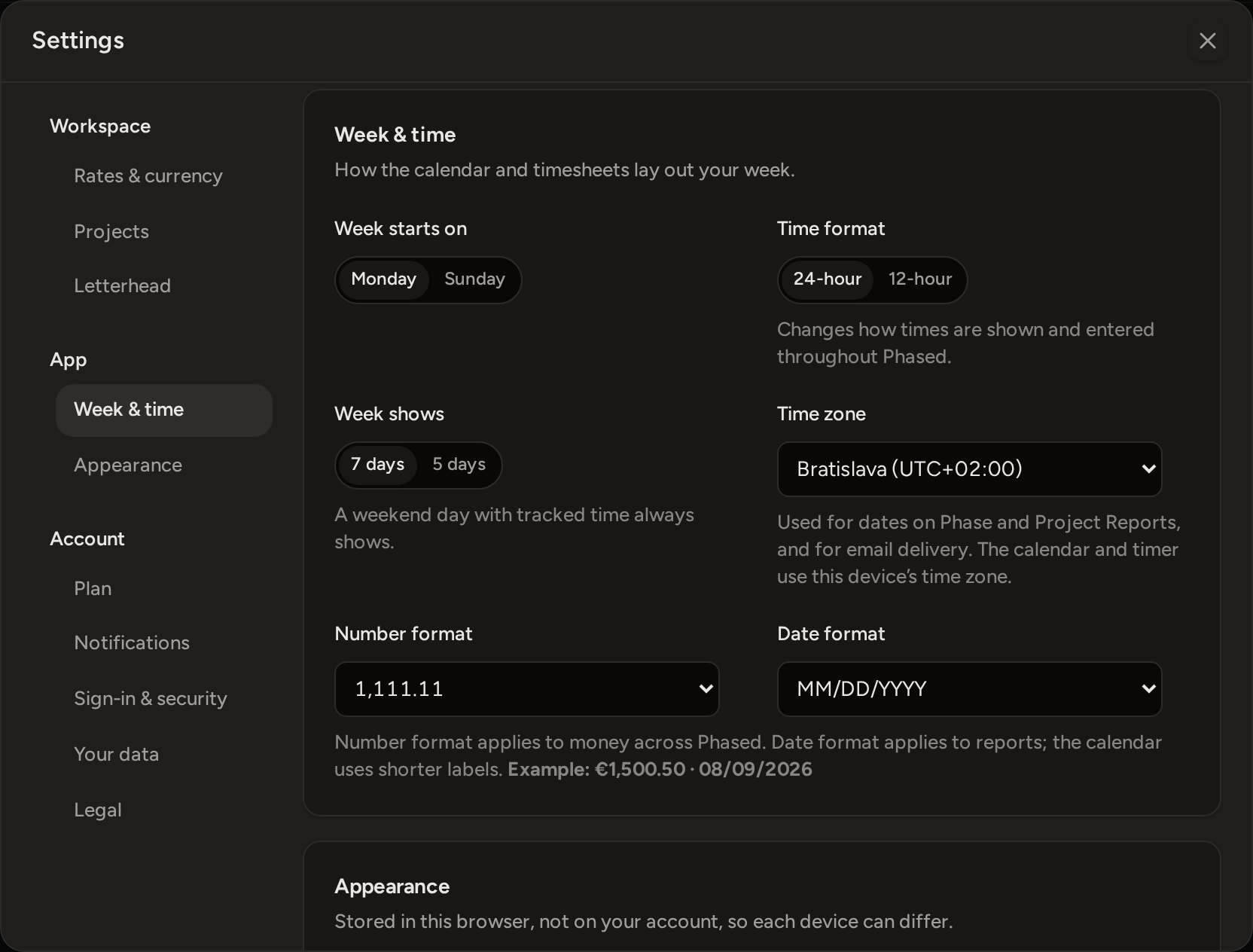
- Week starts on changes the calendar and the week ranges you can choose on the Time page.
- Week shows sets whether the calendar shows weekends. A weekend day with tracked time is always shown.
Time format and time zone
Time format chooses a 12-hour or a 24-hour clock. It applies both when you read times and when you enter them. Time zone sets the dates on Phase and Project Reports. It also sets when Phased sends the weekly summary email.
Numbers, dates and theme
Under the number and date format menus, an example line shows the result. Number format changes how Phased shows money and how it reads amounts you type. Date format changes how dates appear on reports. The calendar keeps its own shorter date labels.
Phased applies these formats each time it shows a report. So if you change them, reports you created earlier also look different. Their saved currency, hours and amounts do not change.
Appearance has the language and the theme. Language switches the app between English and German. It is saved on your account. Theme can be Light, Dark or System. System is the default and follows your device's light or dark setting. The theme is saved in this browser, so another device can use a different one.