On your phone

Phased on your phone.

Same account, same week, in your pocket. Nothing to install: open it in your phone's browser and add it to your home screen.

30-day Pro trial · No credit card · Free plan after, data stays

Your week, one day at a time.

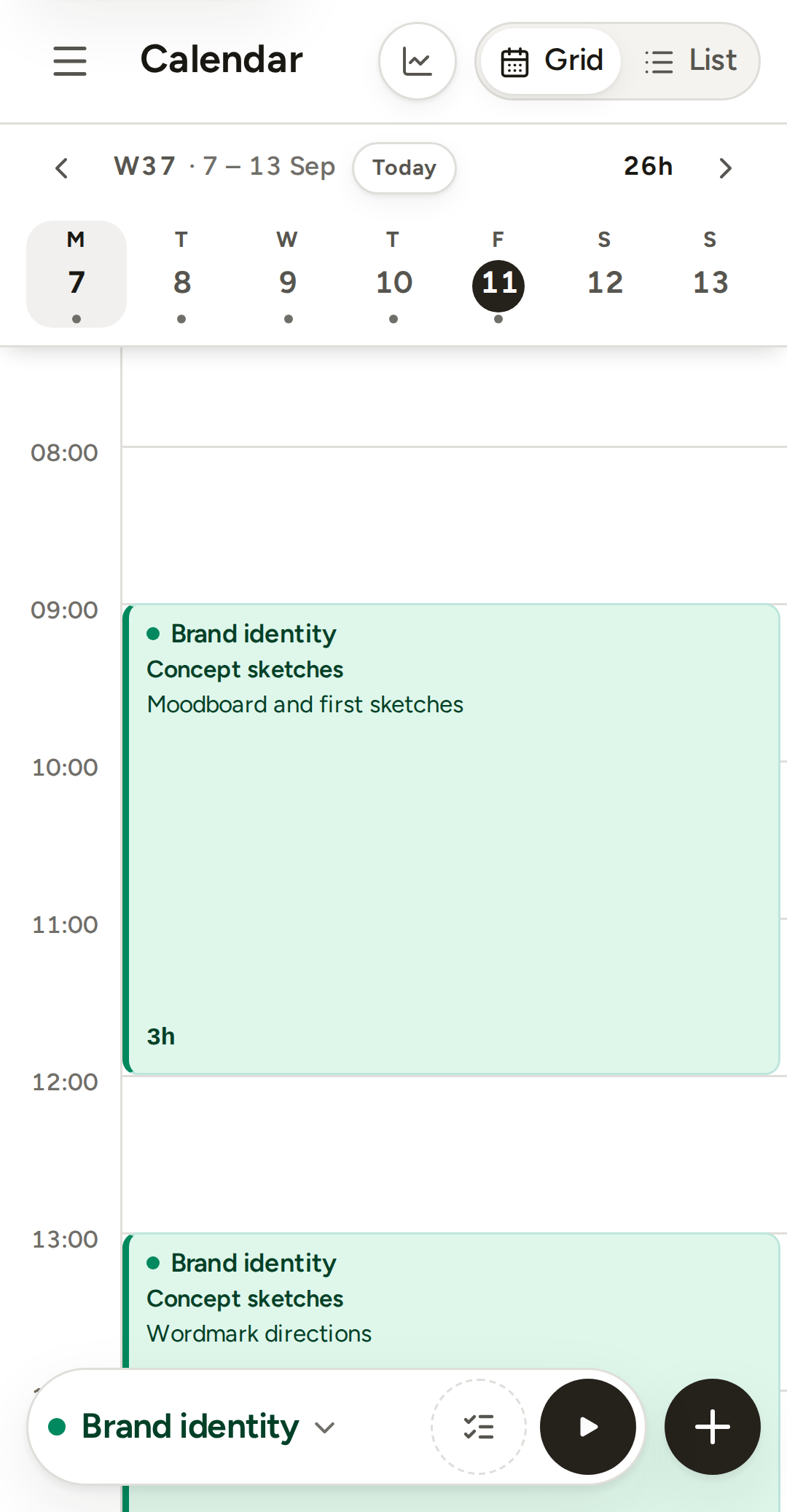
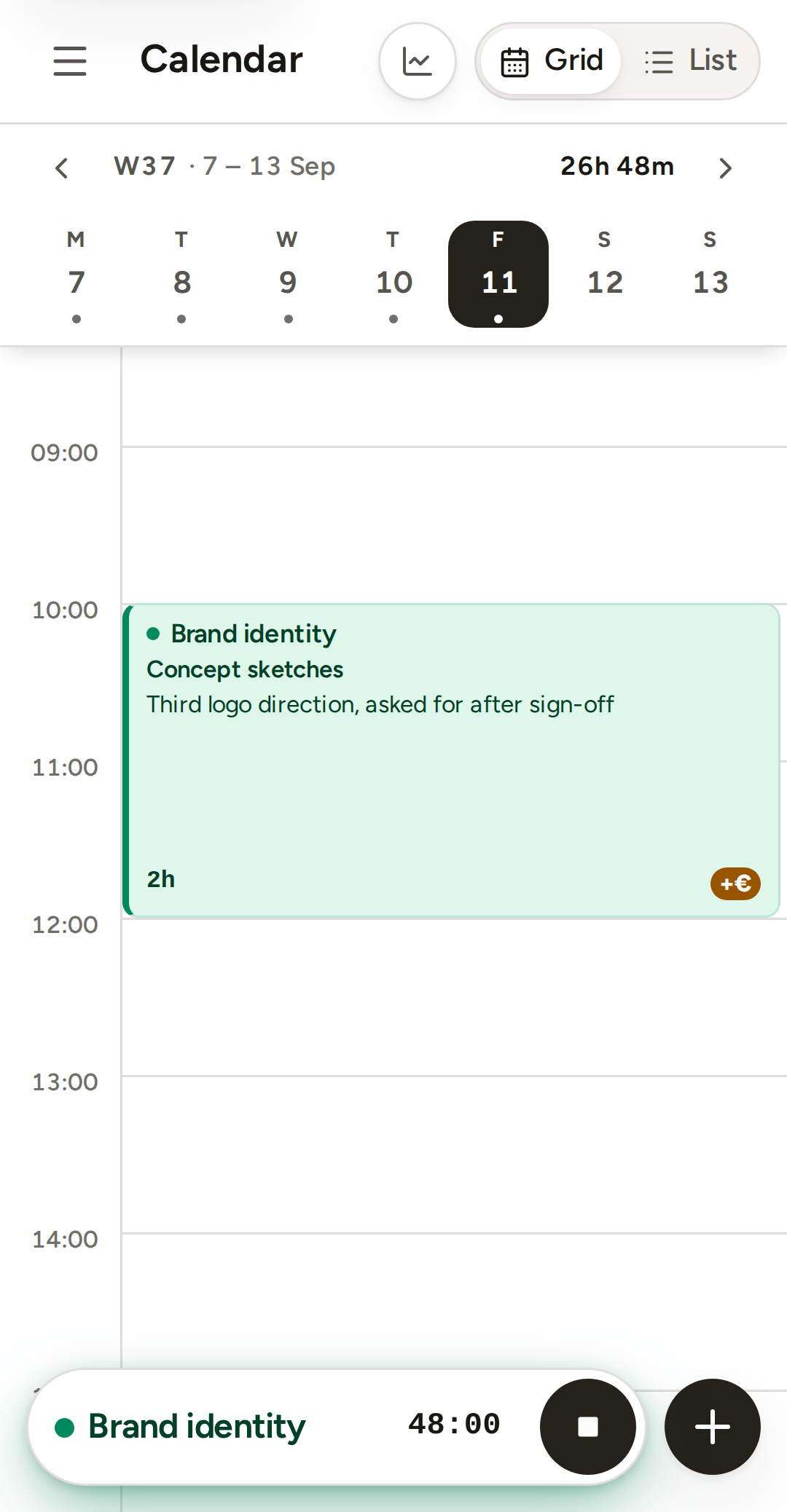
The calendar shows the day you are in, with the week strip above it. Swipe to the next day, hold an empty slot to draw an entry, tap an entry to edit it.

The week's total sits in the strip, and the dot under a day means it has time on it.

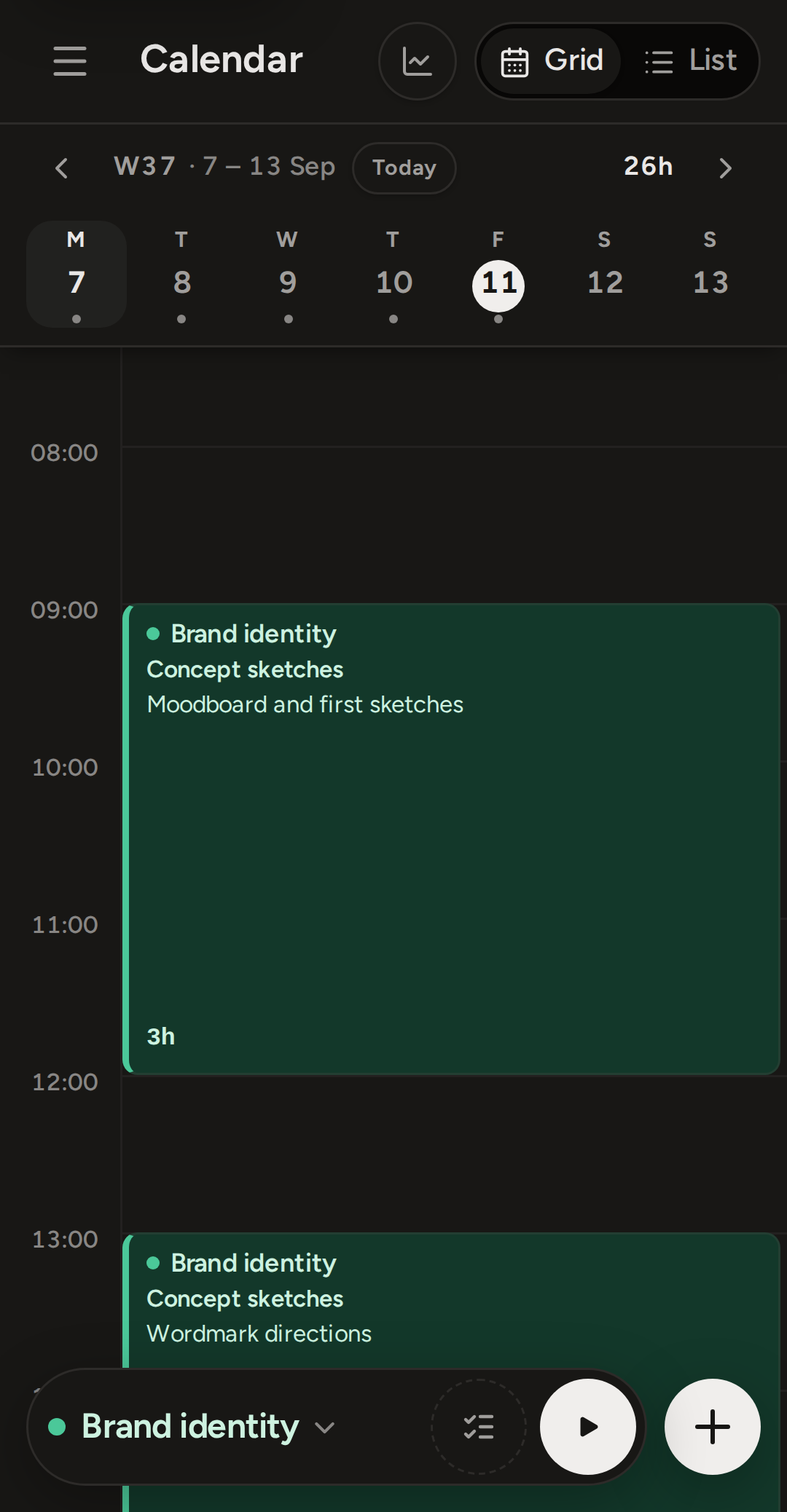
The phone calendar showing one Monday: a week strip along the top, two entries on the day grid, and the timer dock with the plus button at the bottom. The phone calendar showing one Monday: a week strip along the top, two entries on the day grid, and the timer dock with the plus button at the bottom.

Log a piece of work in a few taps.

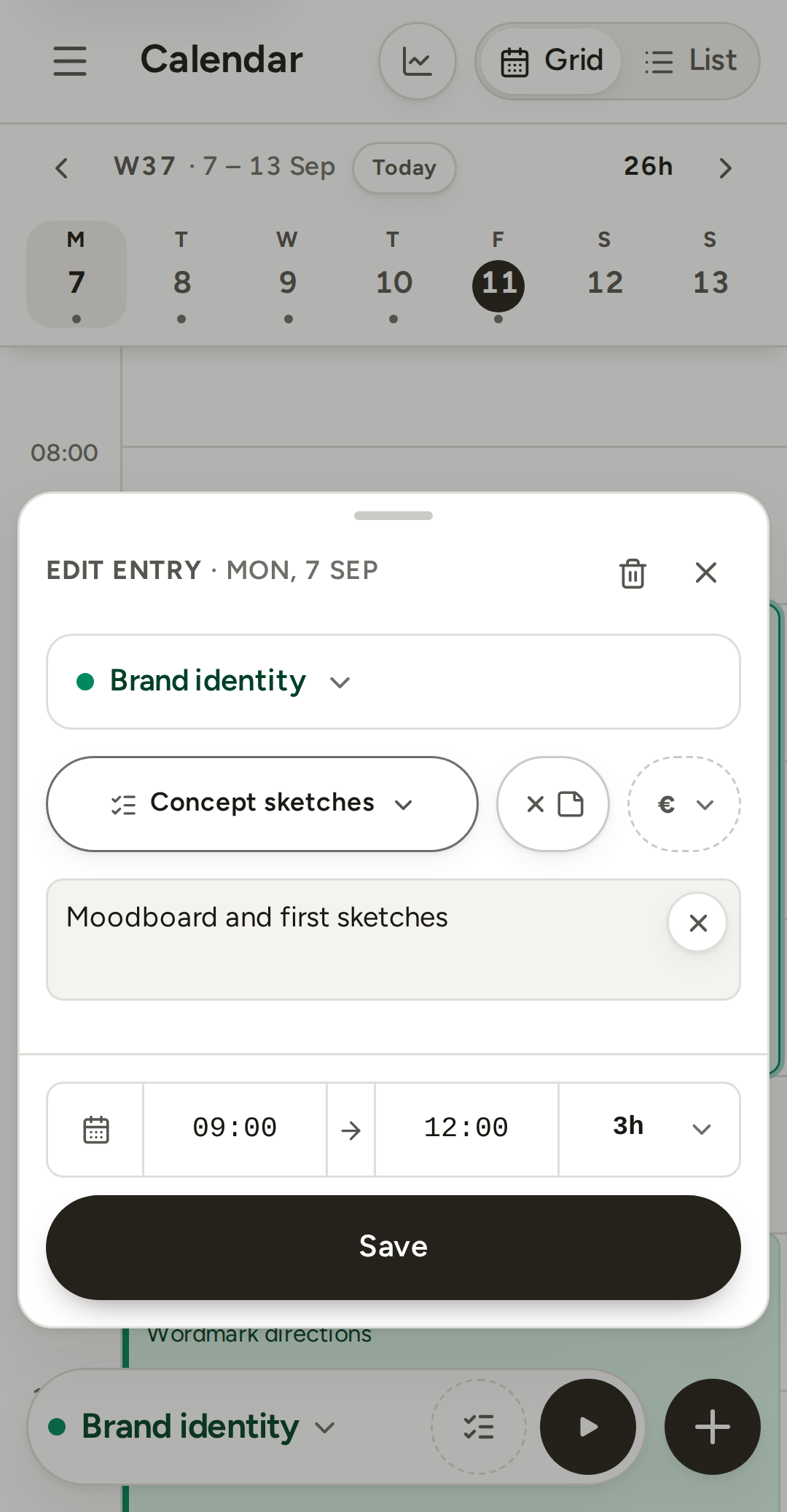
The + opens a new entry at the current time. Choose the project, the phase and the task, then set the start and the end on two wheels and save.

The same sheet edits any entry you tap, so a correction on the way home is the same three taps.

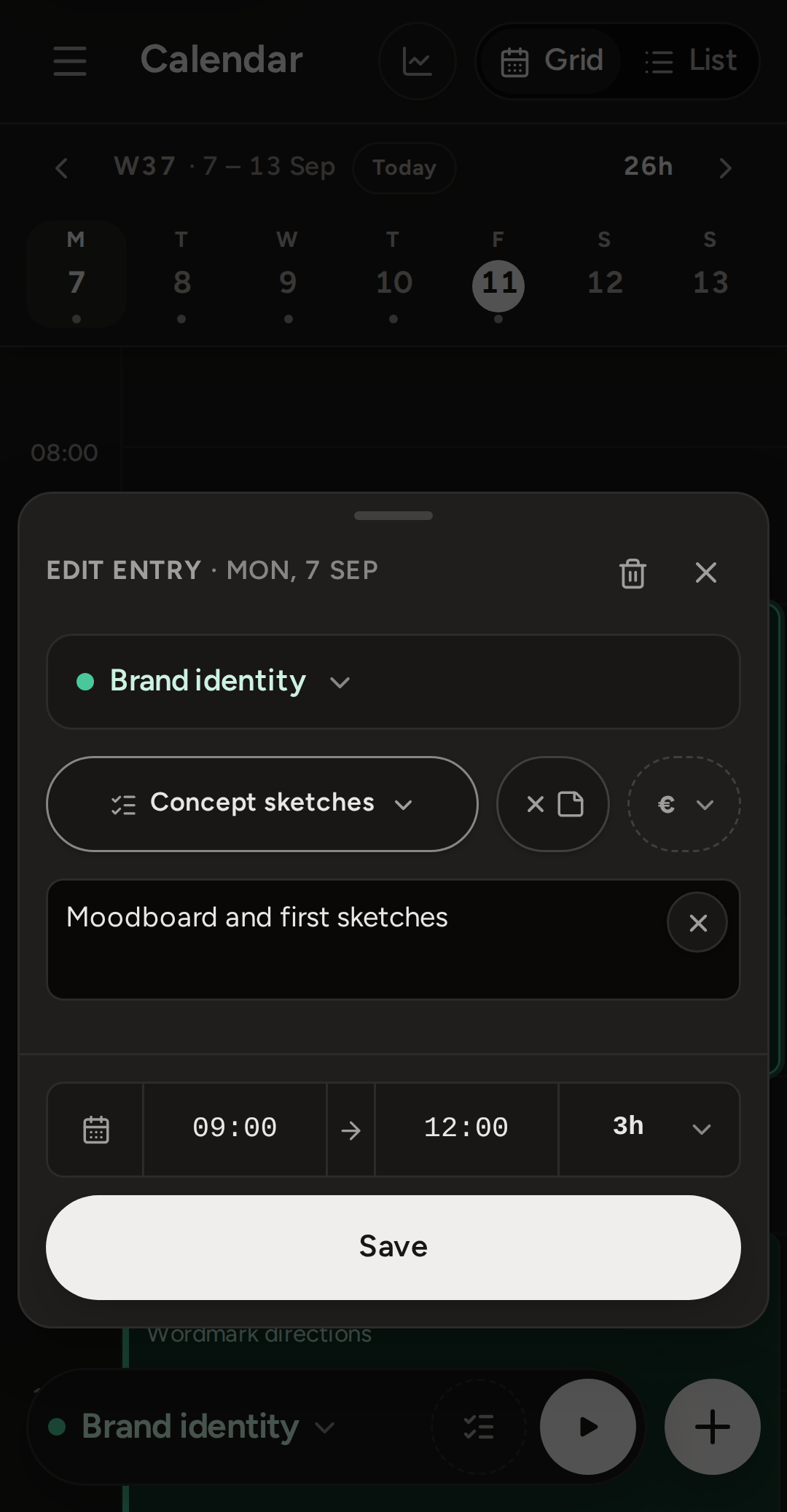
An entry open as a sheet on the phone: the project, the task, the note and, in the footer, the day, start, end, duration and Save. An entry open as a sheet on the phone: the project, the task, the note and, in the footer, the day, start, end, duration and Save.

Start the timer at your desk, stop it on the way home.

One timer per account. Started on the computer, it is running on the phone the moment you open it, and stopping it there ends the run for every device.

A stopped timer is an ordinary entry, so anything you did not fill in at the desk can be added when you have a minute.

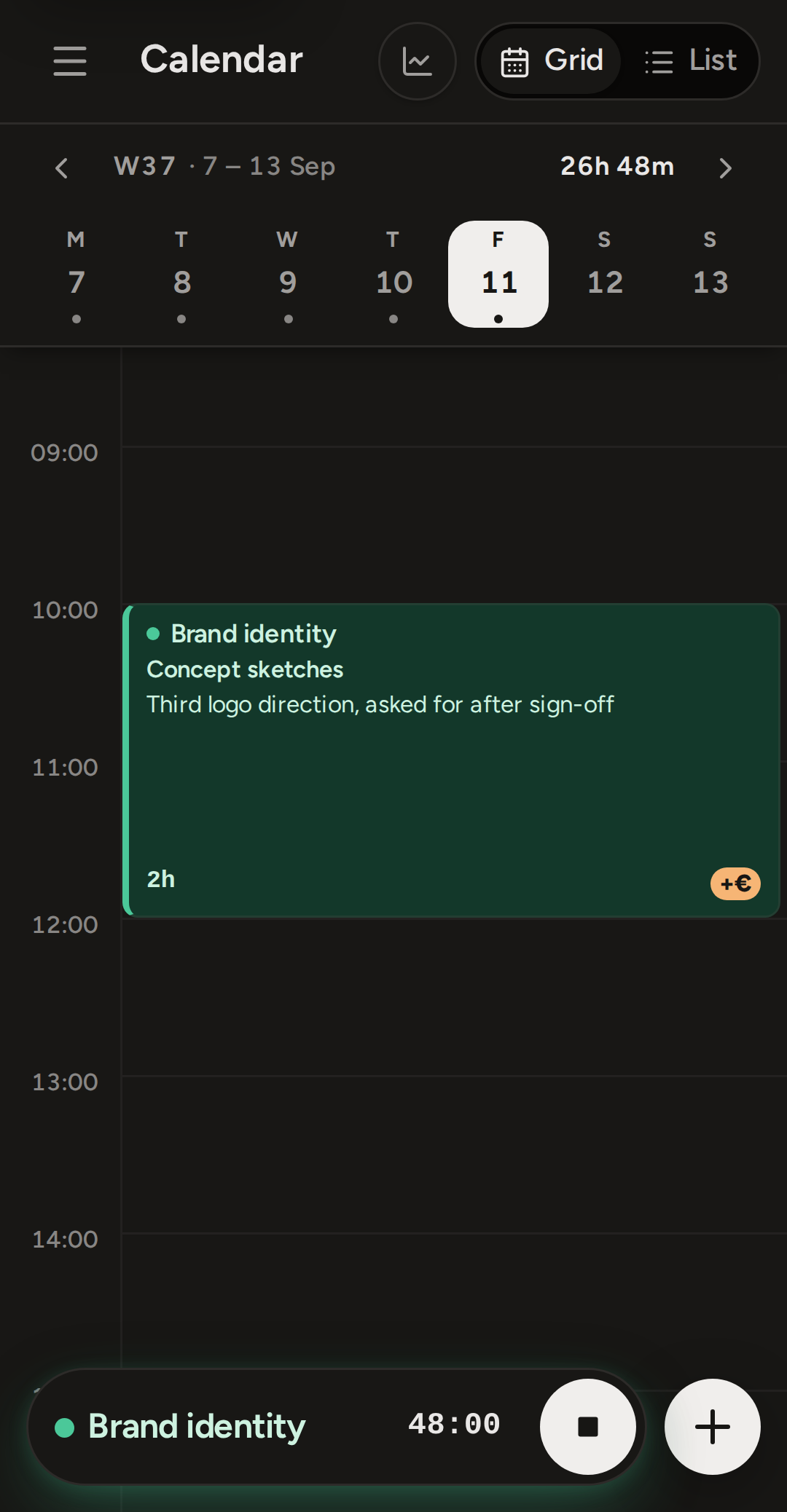
The phone calendar with the timer dock running: the project name, the elapsed time and a stop button. The phone calendar with the timer dock running: the project name, the elapsed time and a stop button.

The list when the grid is too small.

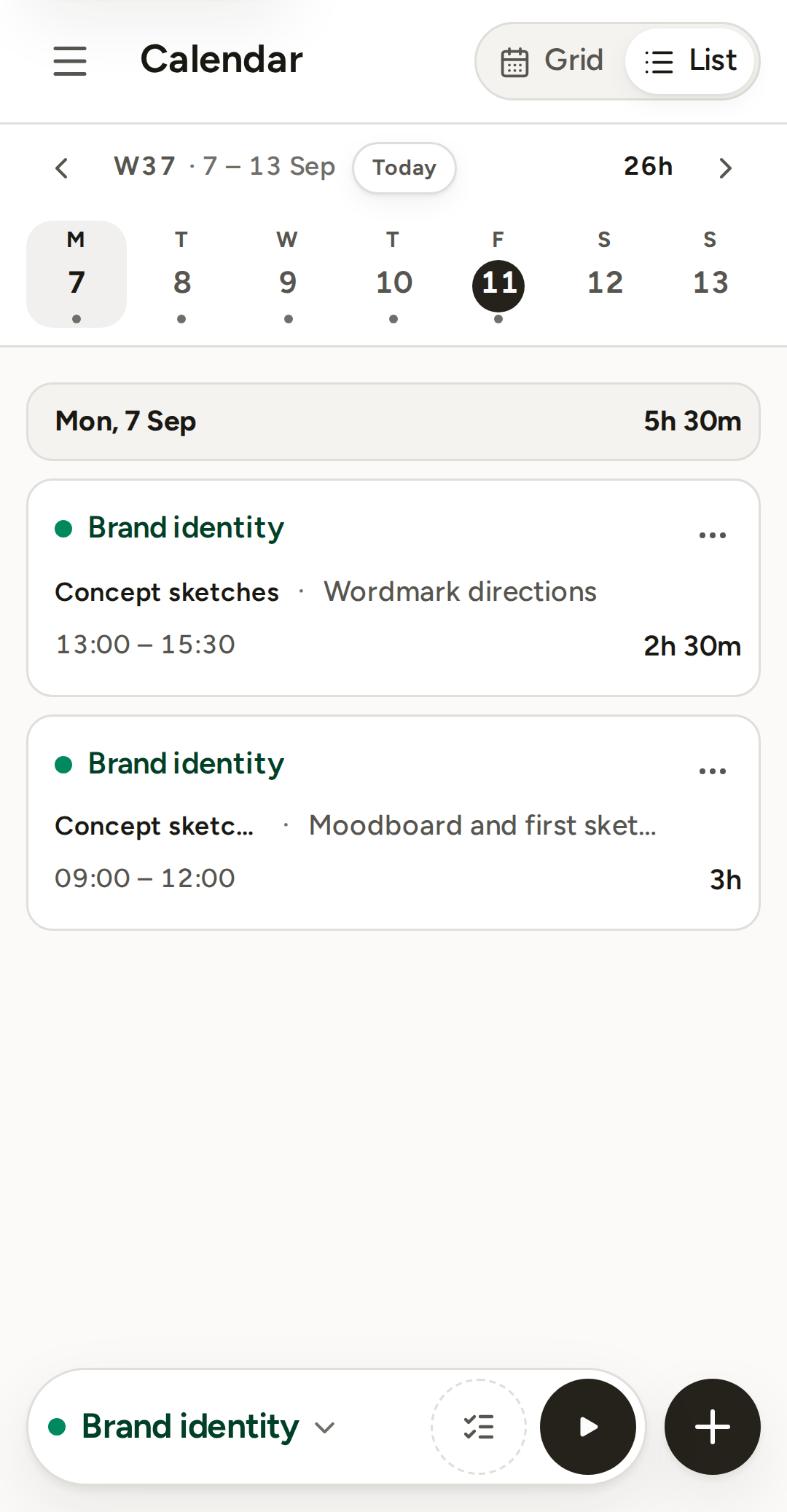
The same day as a list: each entry a row with its project, task and hours, the day's total at the top. Switch between Grid and List from the calendar's header.

Every row's menu edits, deletes or, on a budgeted client project, marks the entry Out of scope.

The same Monday as a list on the phone: the day's total in its header, then one row per entry with project, task, note, times and hours. The same Monday as a list on the phone: the day's total in its header, then one row per entry with project, task, note, times and hours.

Hours and money read fine on a phone.

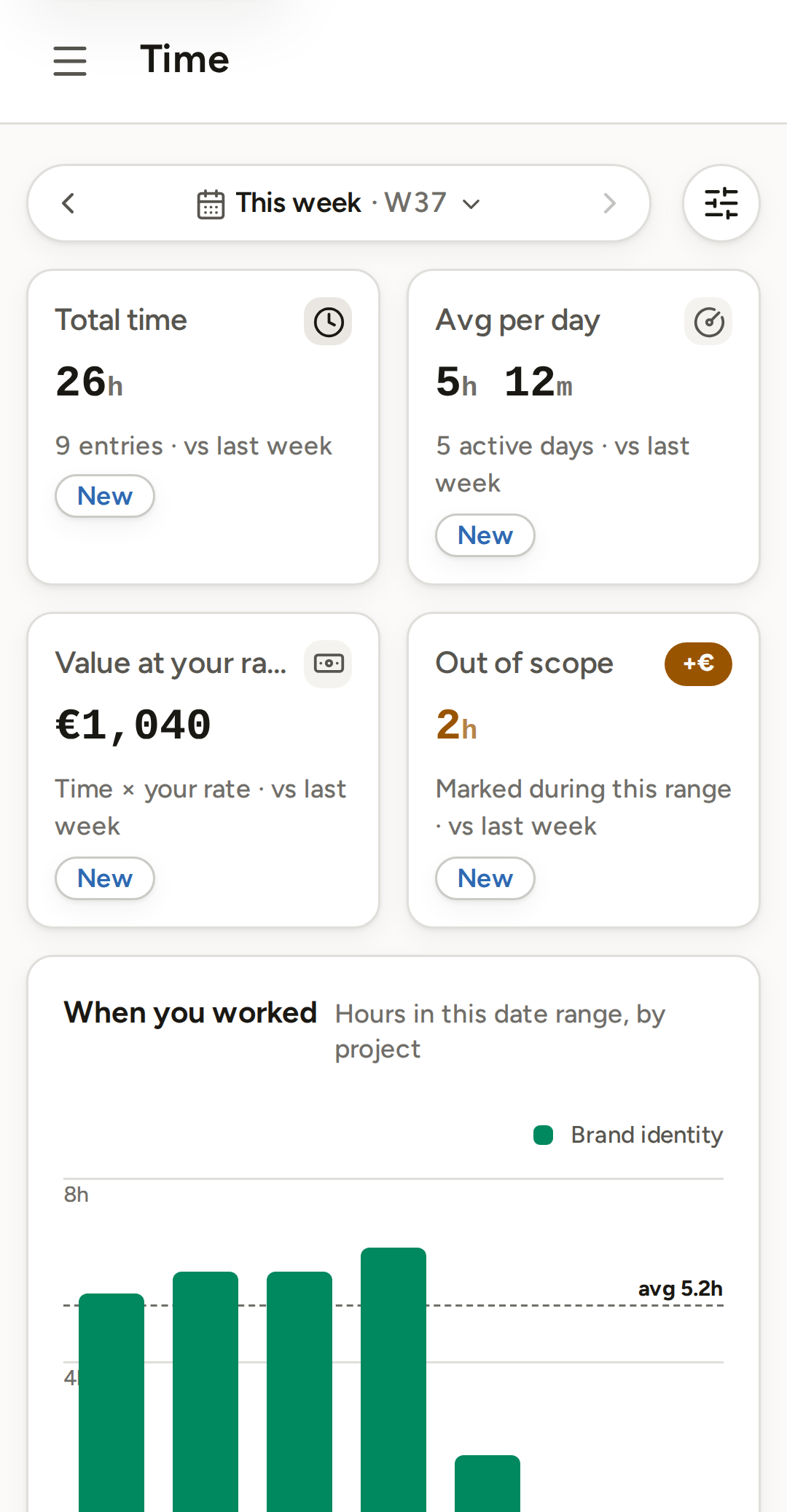
Time's cards and chart fit the screen: the week's hours, the average per day, the value at your rate and the hours marked Out of scope. Projects and Profitability open on the phone too, in the same account.

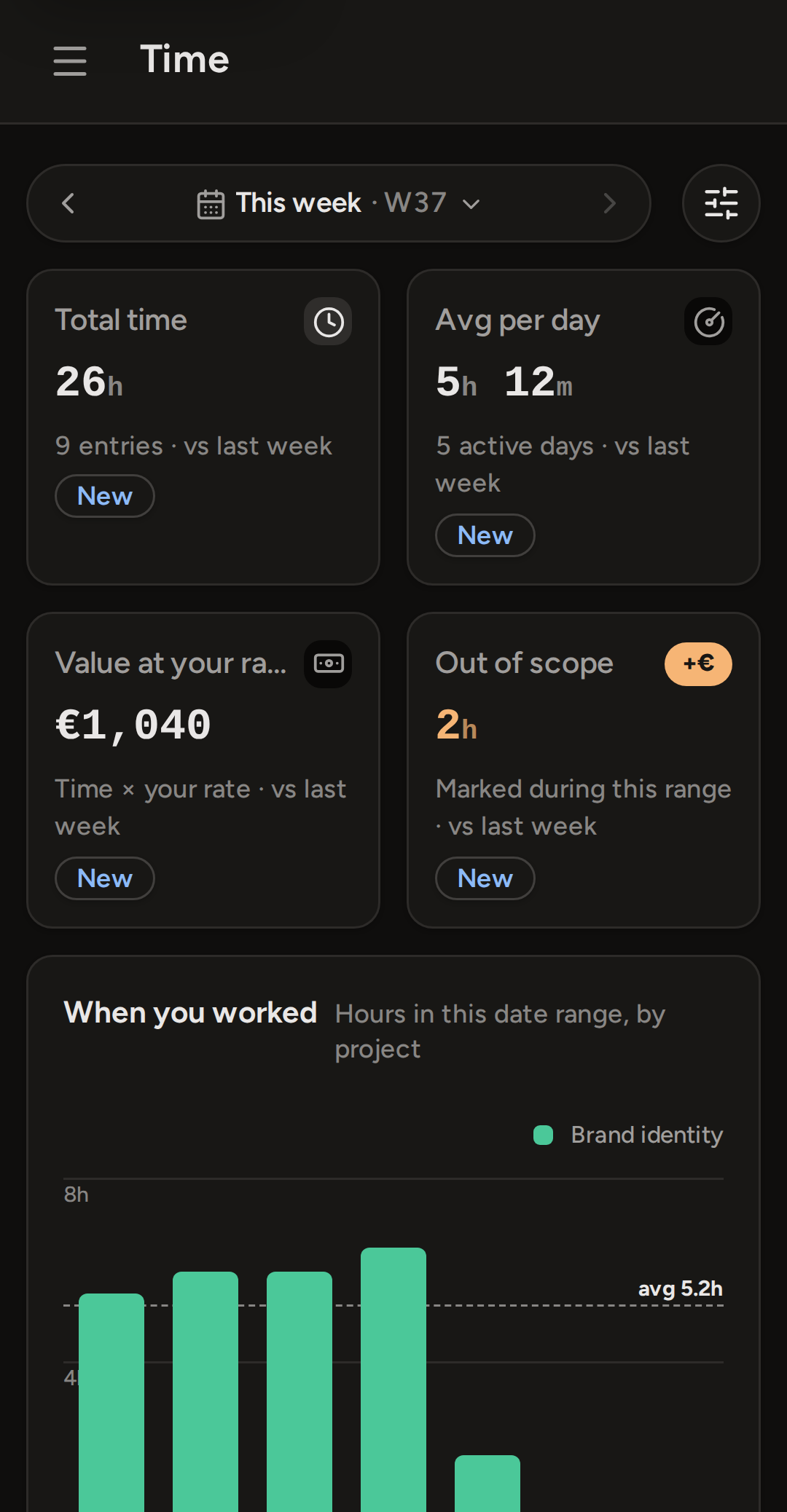
The Time page on the phone: four cards for total time, average per day, value at your rate and out-of-scope hours, with the week's activity chart below. The Time page on the phone: four cards for total time, average per day, value at your rate and out-of-scope hours, with the week's activity chart below.

Your reports, on the phone too.

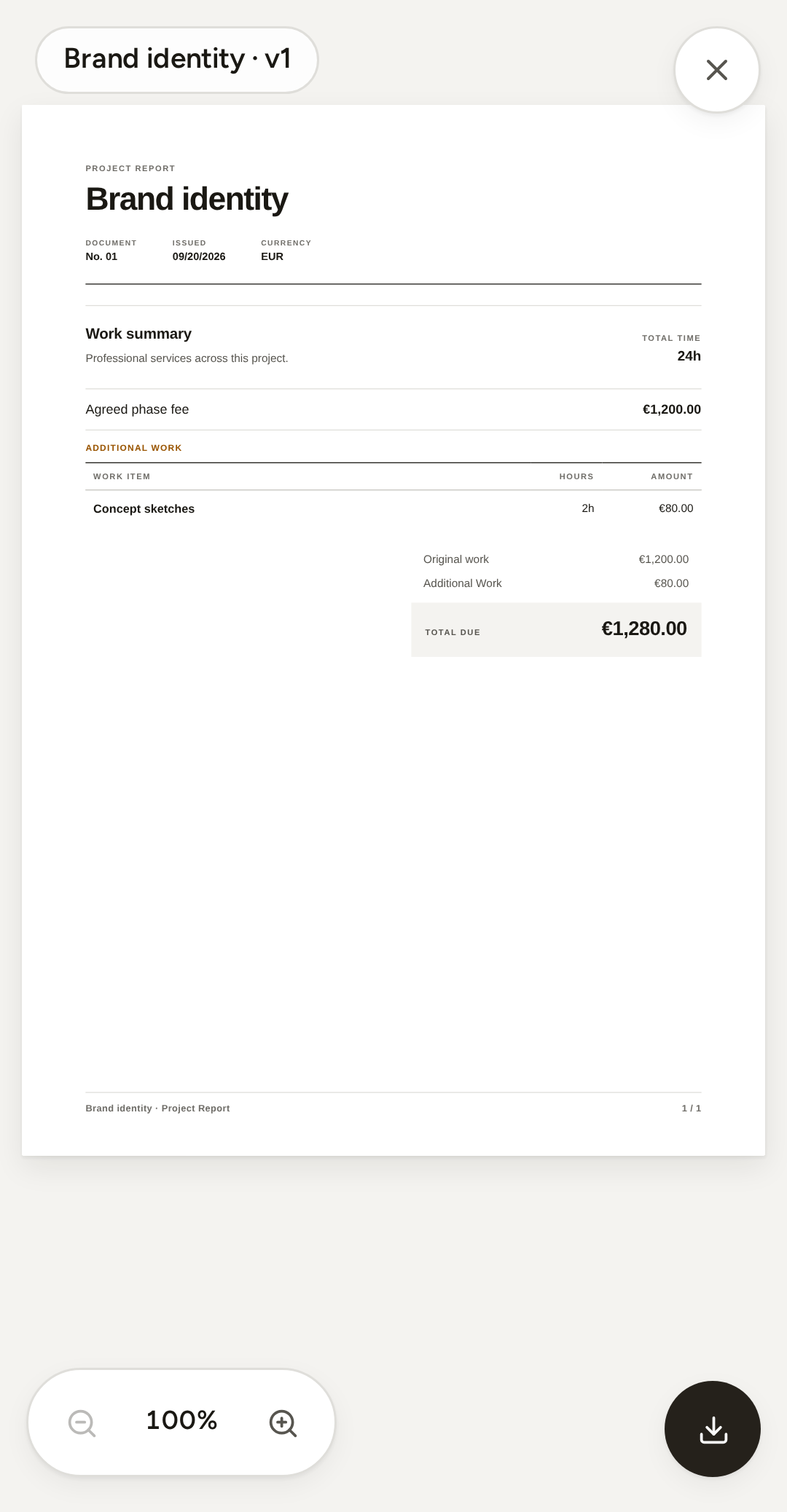
Open a report from the Reports list and it fills the screen: the same frozen document your client gets, page by page, with a zoom control and the PDF one tap away.

The figures are the ones saved when the report was created, so what you read on the train is what was sent.

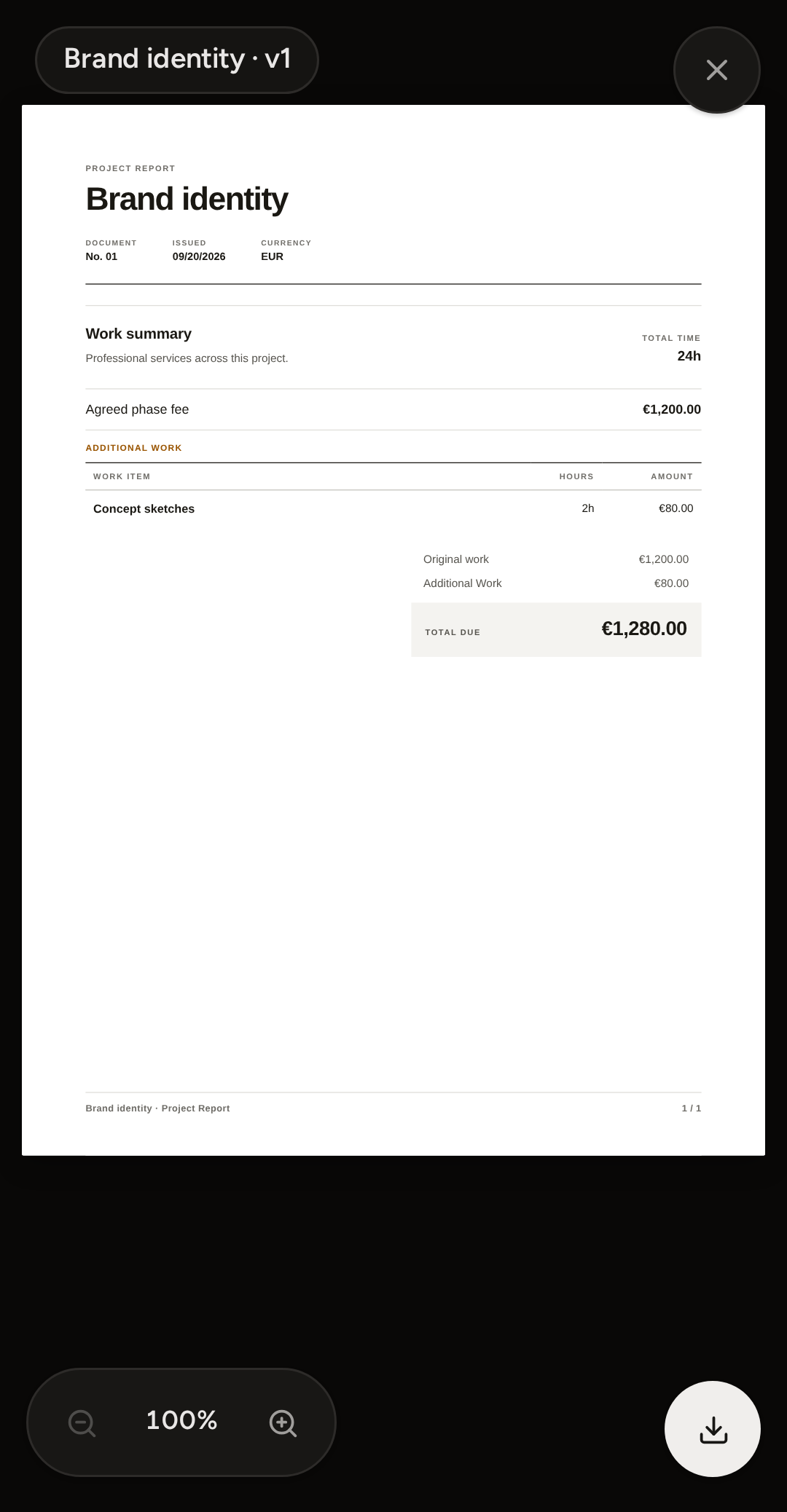
A Project Report open full-screen on the phone: the document's first page with its work summary and total, a zoom control and a download button below it. A Project Report open full-screen on the phone: the document's first page with its work summary and total, a zoom control and a download button below it.

What is still better at a desk

Drawing a whole week at once, and reading a report beside the work it came from. The phone is for the day you are in.